Build your first workflow
Make a form that saves each answer as a new row in Google Sheets.

You need
- A GoRunner account
- Sign up for GoRunner Cloud.
- A GoRunner account
- Your admin invites you to your installation.
- A GoRunner account
- You open GoRunner from inside the product you use.
- A Google account
- You sign in to it in step 4.
- A Google Sheet
- With
Namein cell A1 andEmailin B1.
1.Create a workflow
- Open Workflows and press New workflow at the top right.
- Press the name Untitled workflow at the top and type
Join the list.
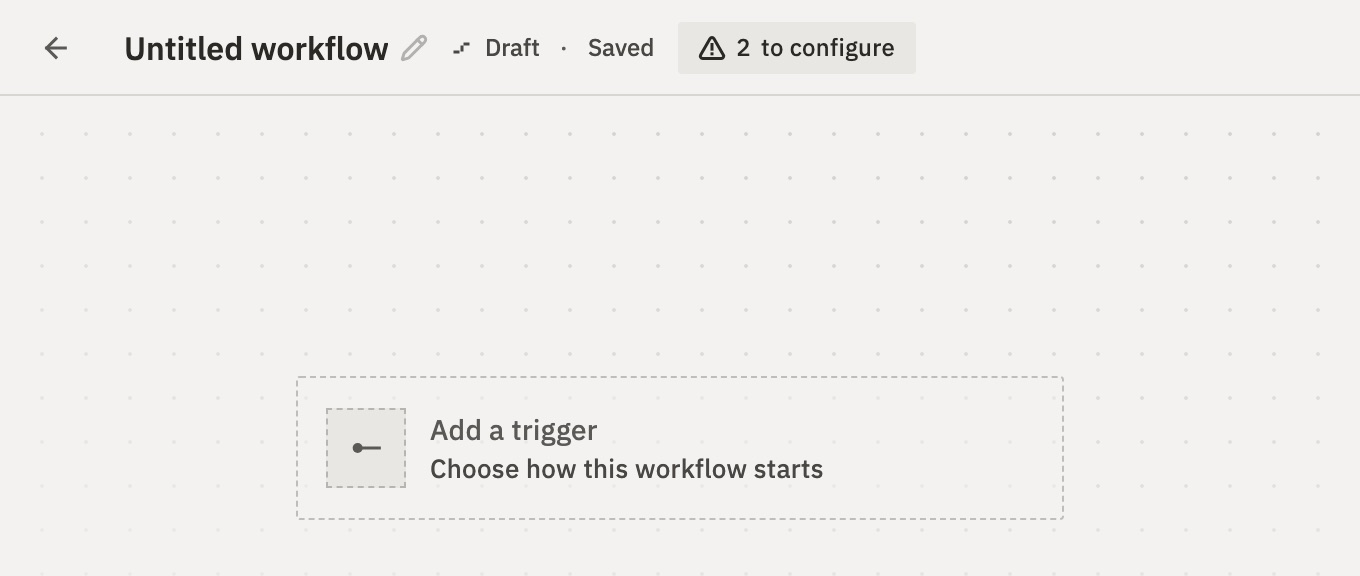
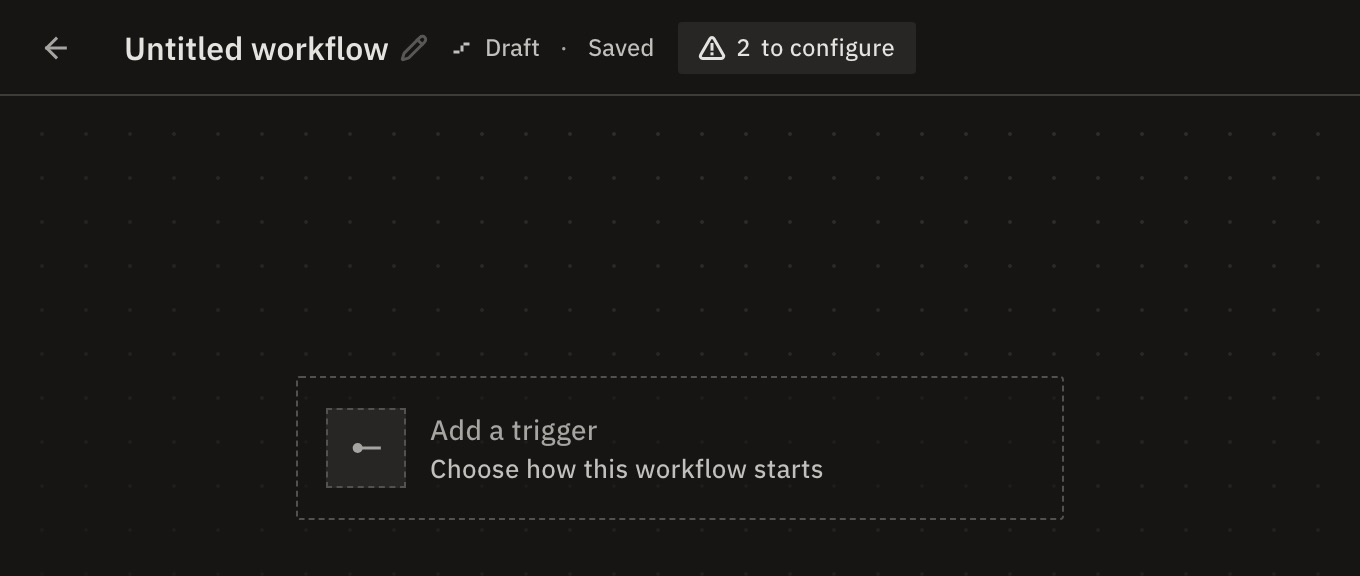
You should see an empty canvas, with Add a trigger in the middle.
2.Add the form
- Press Add a trigger, type
formand choose Form. - Set Form Title to
Join the list. - Under Fields, press Add Field and label it
Name. - Press Add Field again, label it
Emailand set its type to Email.
The form is this workflow’s trigger: the thing that starts it.
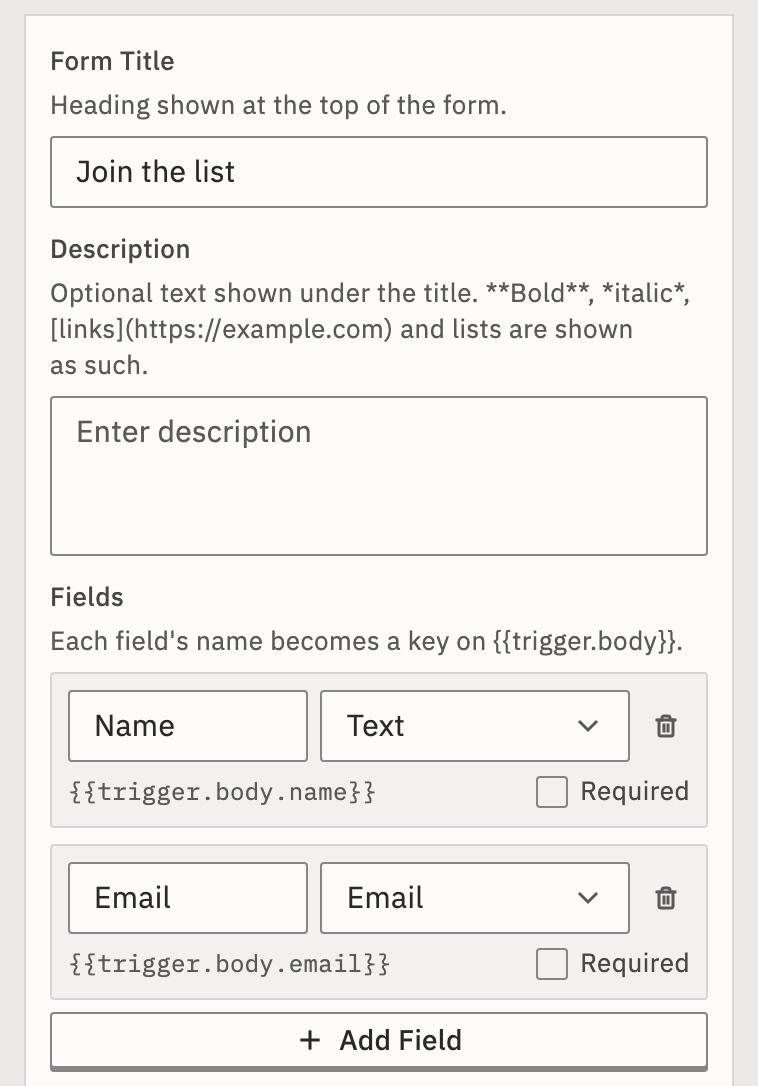
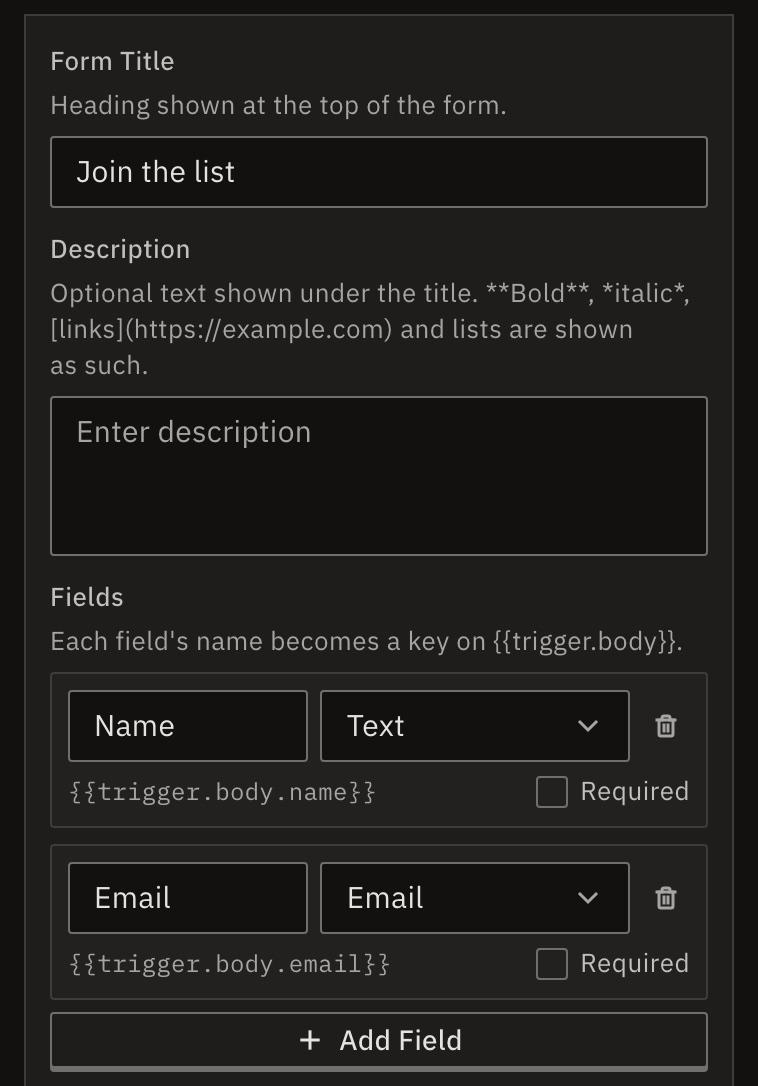
Under each field is the expression that will hold its answer, such as {{trigger.body.name}}.
3.Add Google Sheets
- Under the form’s card, press + (Add step at the end).
- Type
sheetsand choose Google Sheets. - Set Resource to Sheet (Rows) and Operation to Append Row(s).
- Press the step’s name at the top of its panel and type
Add a row.
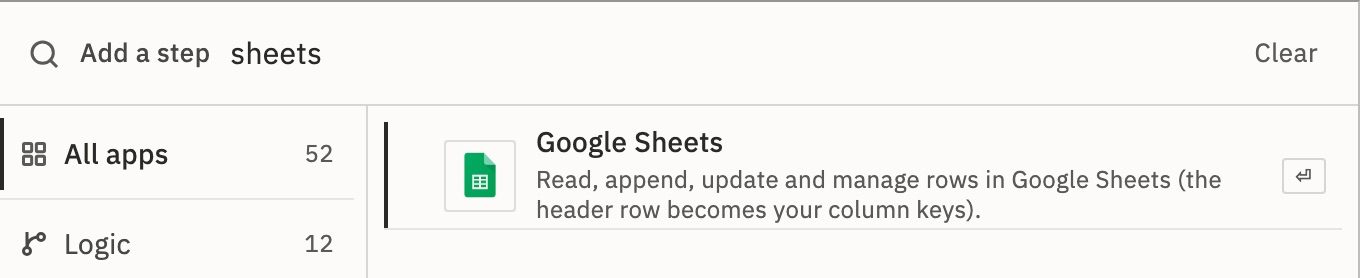
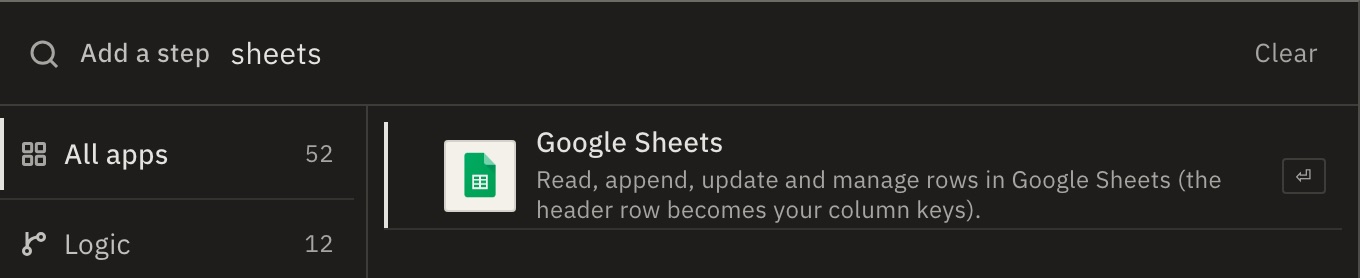
You should see a second card: Add a row · 01 · Google Sheets.
4.Connect your Google account
- Under Connection, press New.
- Press Sign in with Google.
- Choose your account in Google’s window and allow access.
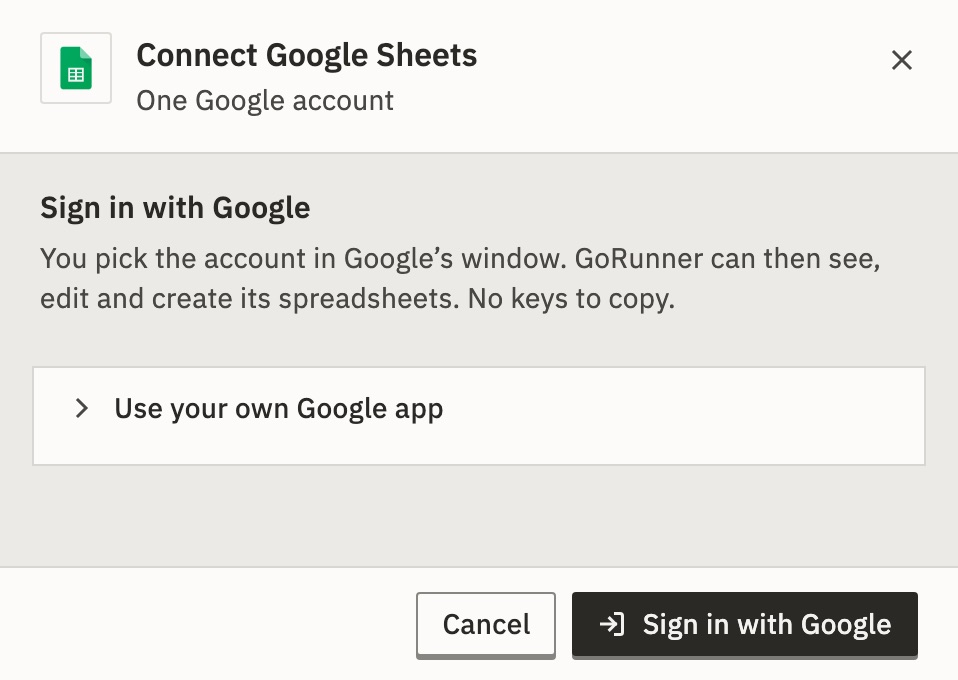
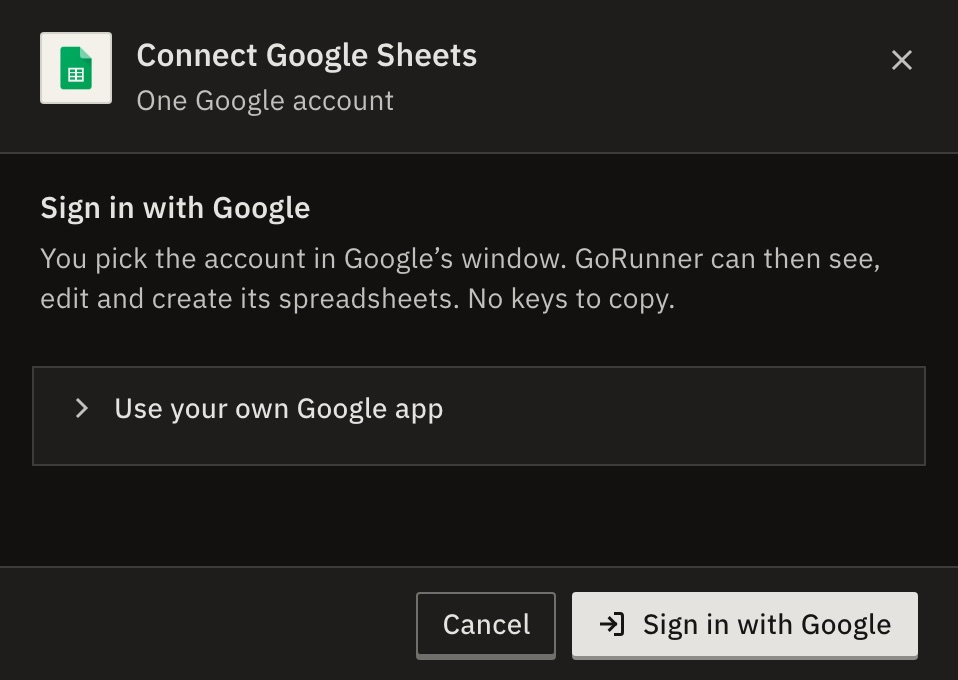
You do this once. Every workflow in this workspace can use the connection.
What if it says “Set up Google sign-in”?
This installation has no Google app yet. If you’re an admin of this installation, paste the Client ID and Client secret of a Google Cloud app. Add the Redirect address to add in Google Cloud to that app, then press Save and sign in. Everyone on the installation can then sign in with Google.
Publish the app in Google Cloud: an app left in Testing signs everyone out after 7 days.
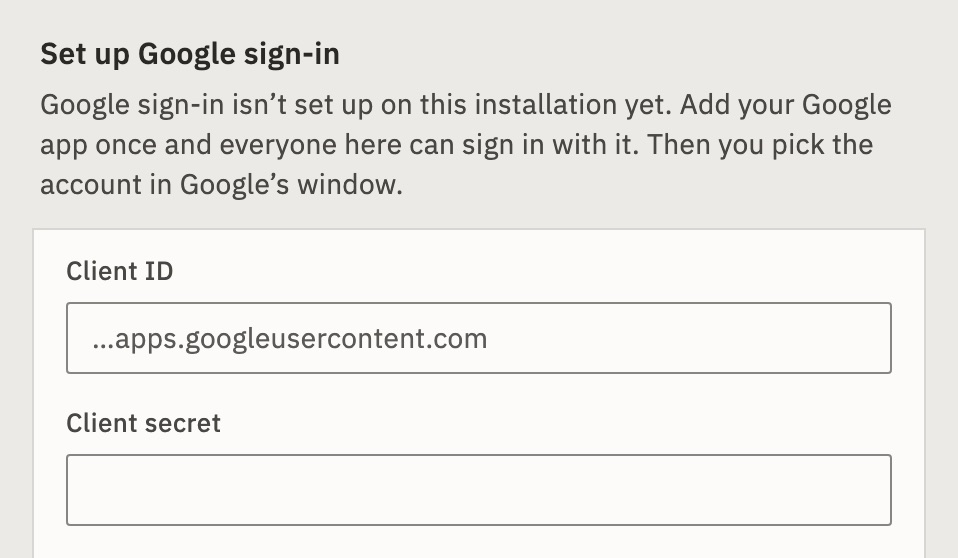
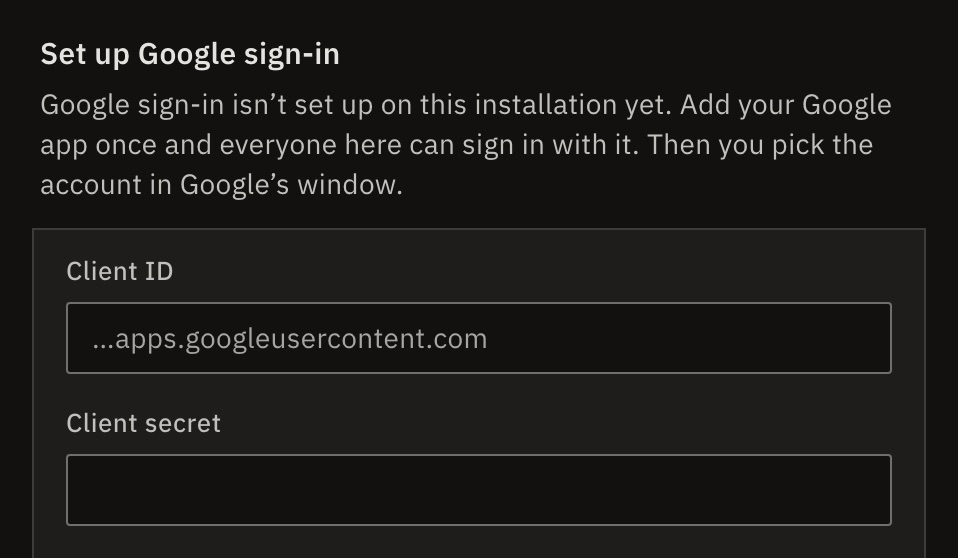
Anyone else sees “Google sign-in isn’t set up here”, with the name of an admin to ask.
5.Choose what to write
- In Spreadsheet, paste your sheet’s address from the browser.
- In Sheet, choose the tab, such as Sheet1.
- In Data, paste this exactly. You don’t need to write it yourself:
{"Name": "{{trigger.body.name}}",
 "Email": "{{trigger.body.email}}"}
The words before each colon are your sheet’s column names, from row 1. Each {{ }} is replaced with what the person typed.
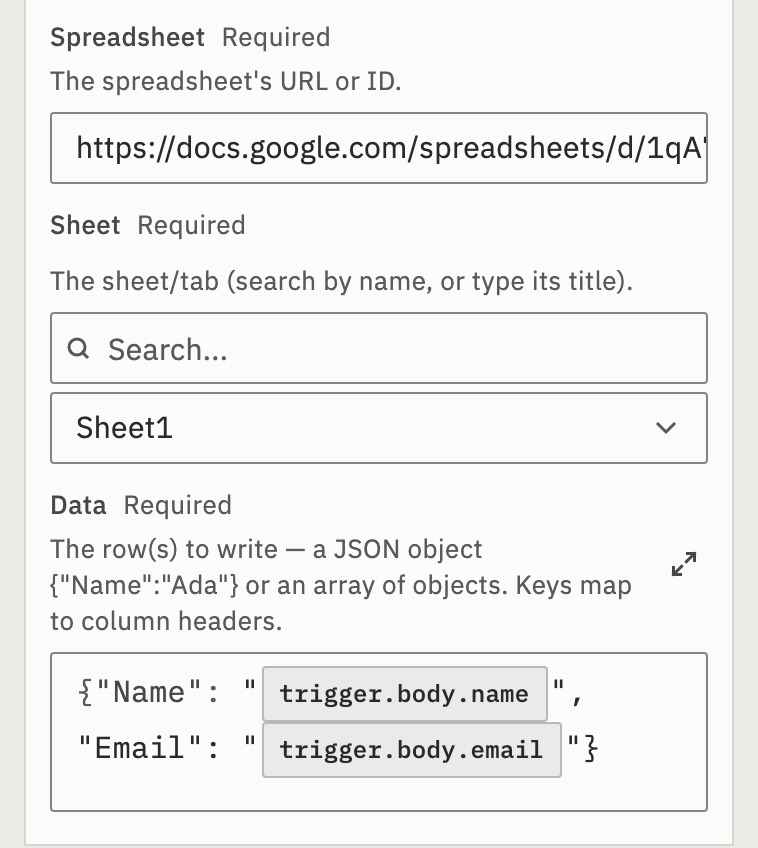
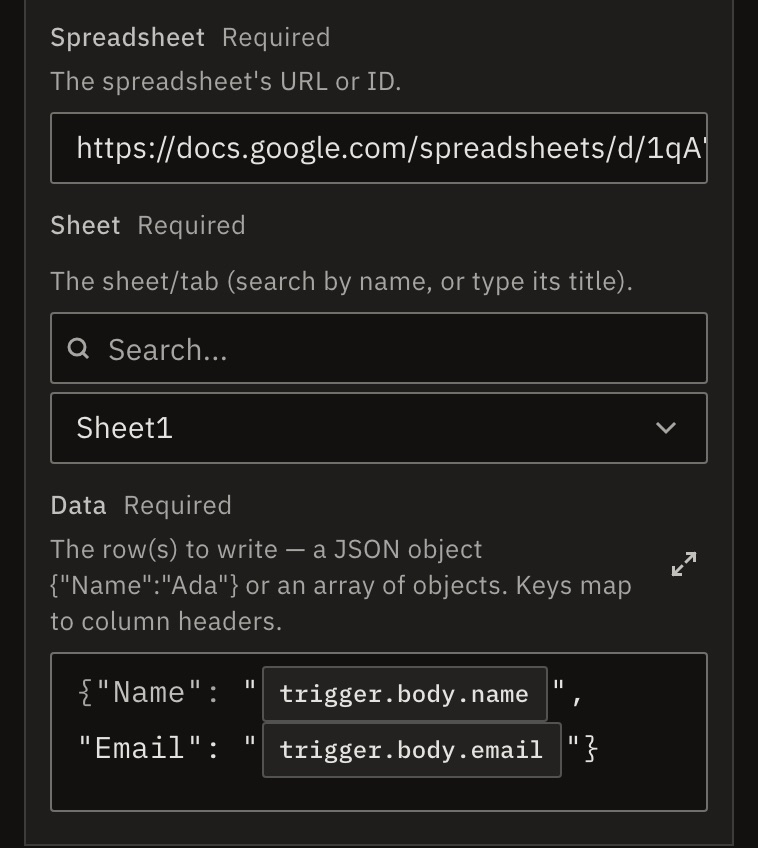
You should see each expression as a pill, such as trigger.body.name.
6.Test it
Press Test in the top bar. GoRunner runs your draft once, with an empty sample in place of a real answer. The steps do real work, so Google Sheets writes to your sheet. If a card shows Failed, select it to read why.
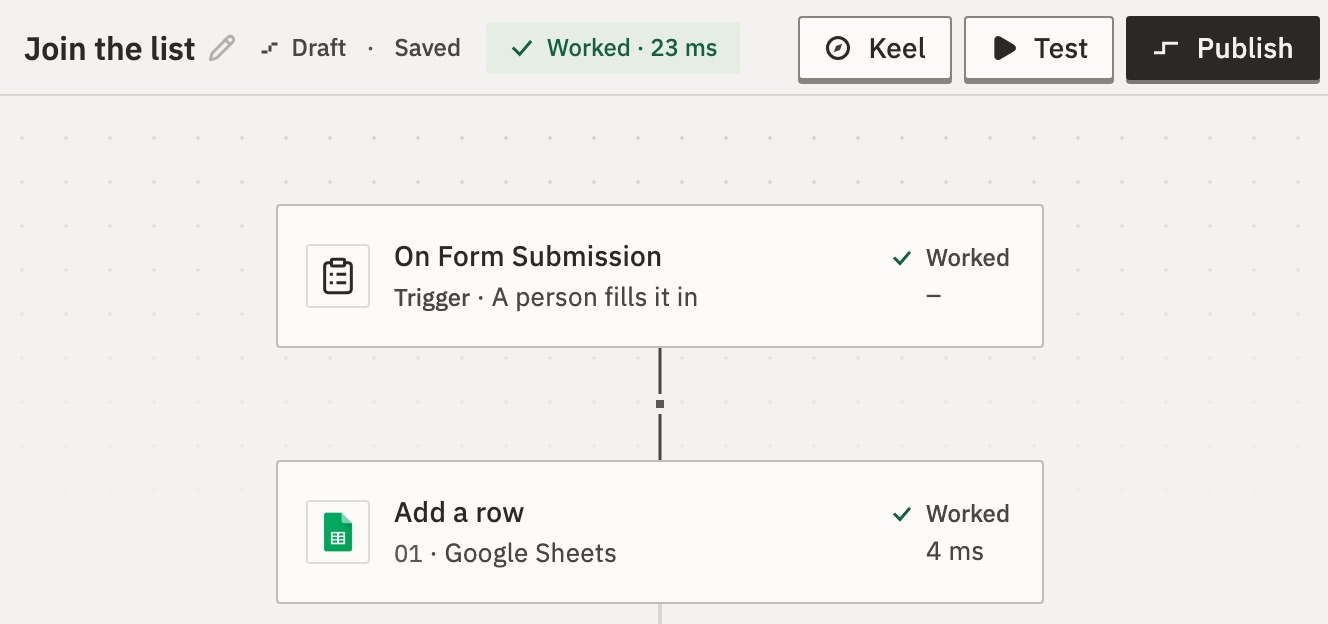
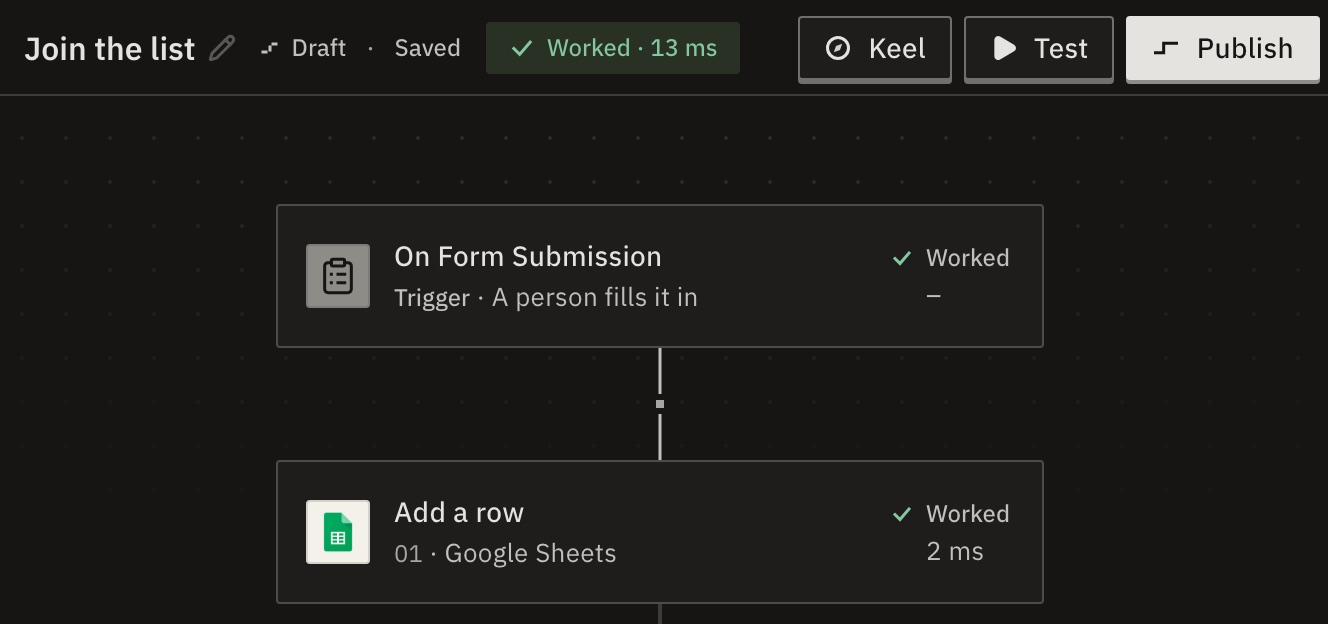
You should see Worked on both cards. The test wrote a blank row, because the sample was empty: your sheet looks the same, and the first real answer fills that row.
7.Publish
Press Publish. From now on, every answer starts a run.


You should see the state next to the name changes from Draft to Live.
8.Send the form
- Select the On Form Submission card.
- Copy the Form URL (public) and open it in a new tab.
- Fill in the form and press Submit.
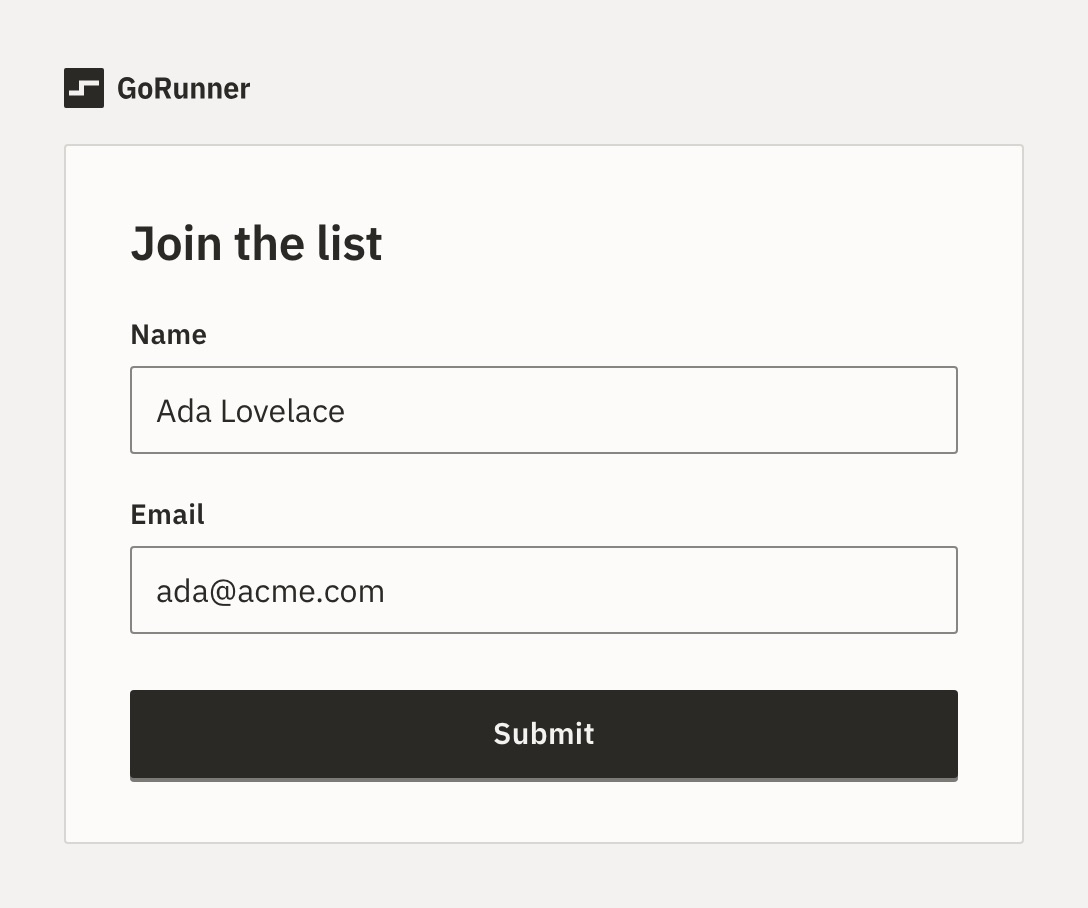
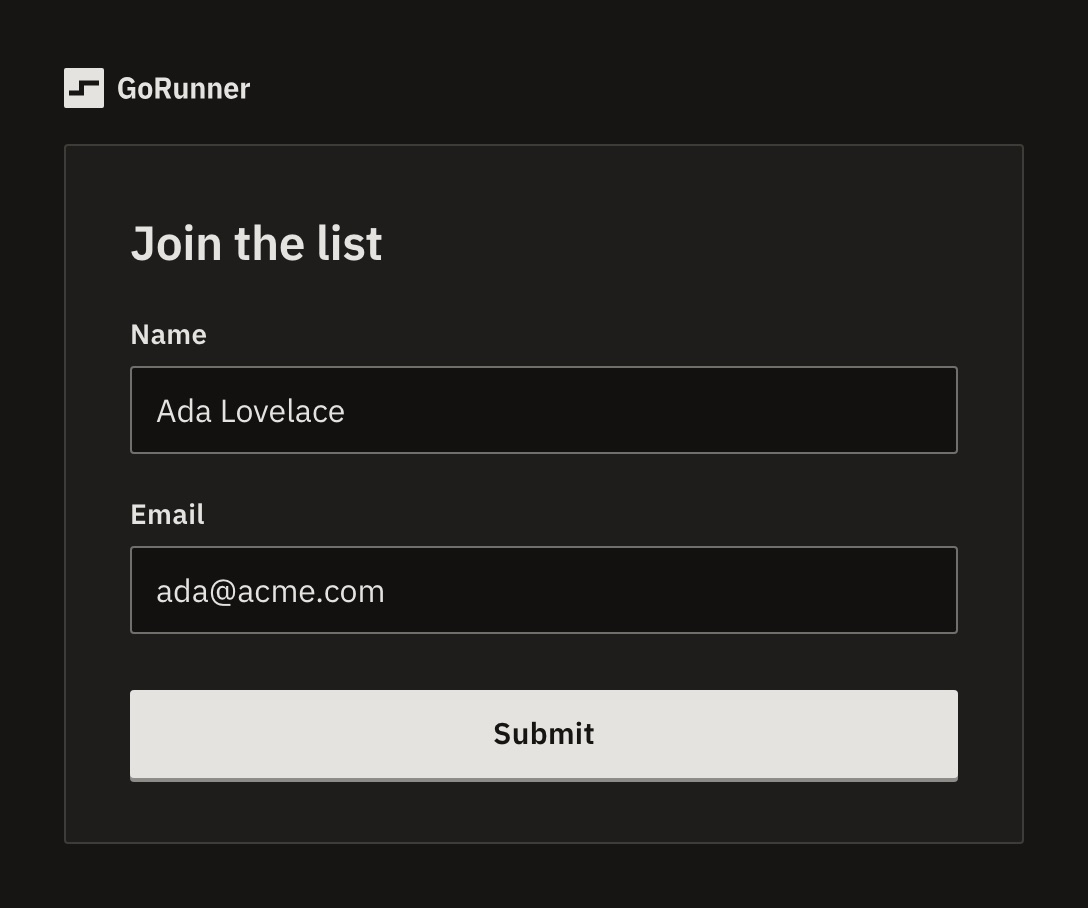
Within a few seconds, a new row appears in your sheet:
| Row | A | B |
|---|---|---|
| 1 | Name | |
| 2 | Ada Lovelace | ada@acme.com |
To see each time the workflow ran, open Runs.
What you built
A workflow is a trigger, here the form, followed by steps, here Google Sheets. Test runs your draft once. Publish makes it live, so every new answer starts a run.
Next
- What is a workflow?Triggers, steps, drafts and runs · 4 min
- Use data from earlier stepsPut a form answer into an email · 5 min
- Connect GmailSign in once, use it in every workflow
Checked against 12d85b3b