Find your way around
Where things are: the sidebar, search, the switcher and Settings.
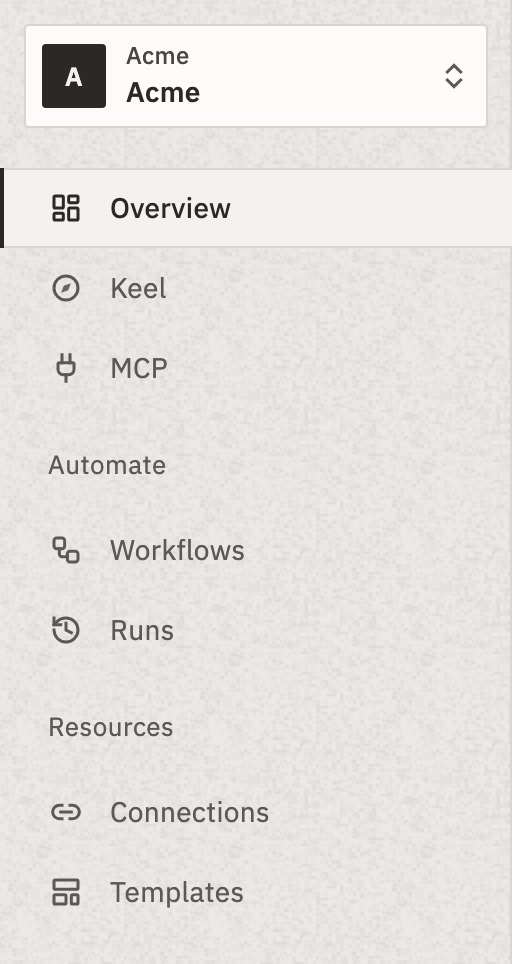
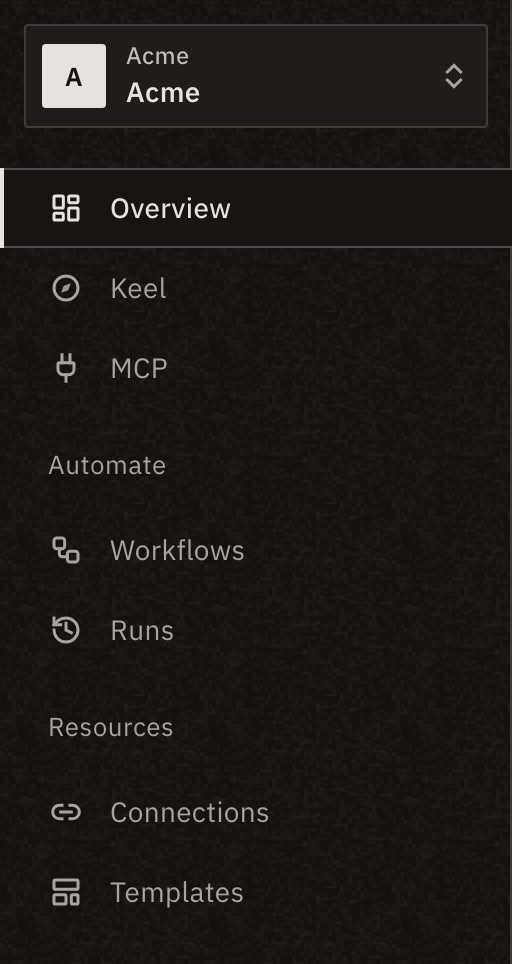
The sidebar
- Overview
- What needs you now: failing workflows, held runs and connections to fix, and how the last 7 days went.
- Keel
- GoRunner’s assistant. Describe a workflow and it drafts the steps.
- MCP
- ChatGPT, Claude, Cursor and other AI apps connected to GoRunner, and your workflows they can call as tools.
- Workflows
- Every workflow in this workspace, with folders, tags and status.
- Runs
- Each time a workflow ran, newest first, and the runs that need you.
- Connections
- Your sign-ins to other apps, shared by the workspace.
- Templates
- Workflows saved for others to start from.
Workflows and Runs sit under Automate. Connections and Templates sit under Resources.
In Embed: The pages are tabs across the top: Overview, Workflows, Runs, Connections, Templates and API tokens (MCP while MCP is on). The product decides which tabs you see, and tabs that don’t fit go under More. Search is on the right. There is no switcher, menu or Settings: the product handles your account.
Your menu
Press your name at the bottom of the sidebar for Settings, the theme (Light, Dark or System) and Sign out.
Self-hosted: Platform admins of the installation also see Platform there.
Search and commands
Press ⌘ K (Ctrl K on Windows) anywhere. Type to find a workflow, a run, a connection or a setting. Or pick an action, such as New workflow, Ask Keel or Connect an AI app.
On Runs, Connections and Templates, press ? to see the page’s keyboard shortcuts. On Workflows, press Keyboard shortcuts at the foot of the list.
Switch organization or workspace
Everything you see belongs to one workspace of one organization. Their names sit at the top of the sidebar.
- Press the names at the top of the sidebar, or press ⌘ E.
- Type in Find a workspace or organization, or pick one from the list.
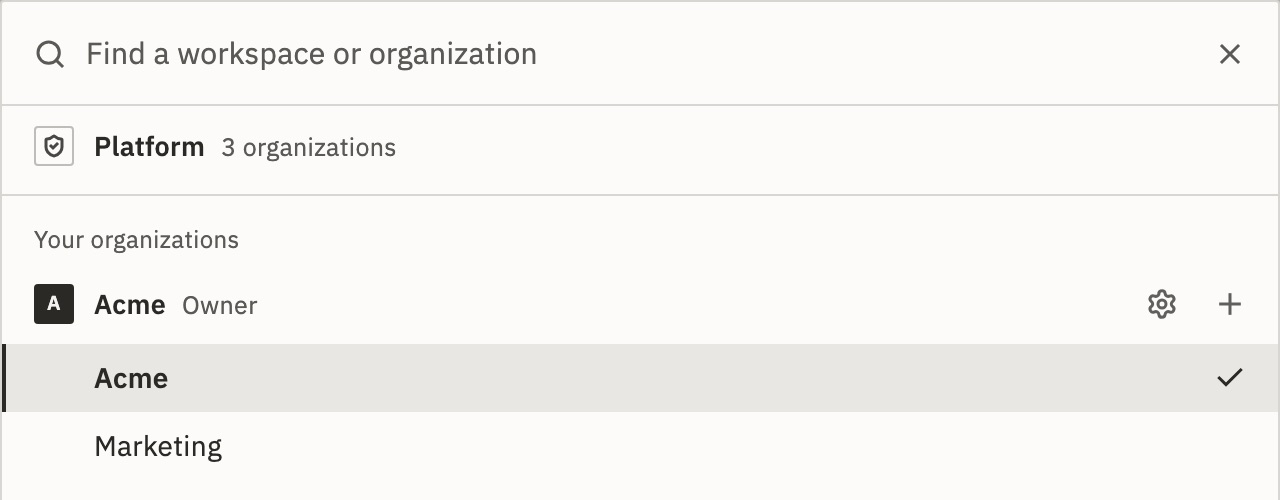
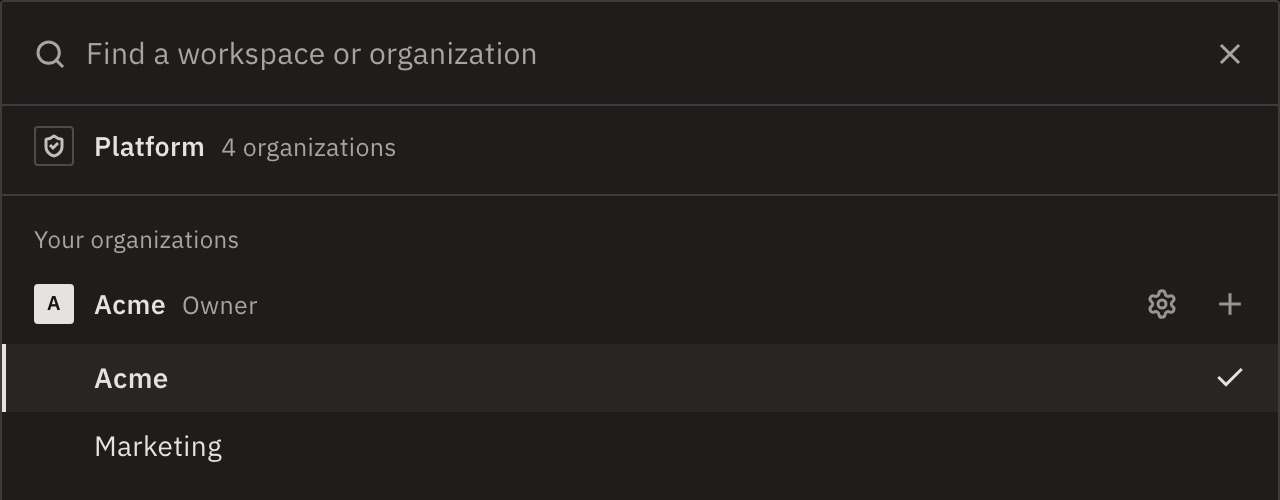
The list shows each organization you’re in, with its workspaces and your role. Owners and admins add a workspace with the + beside the organization’s name (New workspace in and its name), or by typing the new name in the search.
Settings
Open Settings from your menu, or press ⌘ ,. Its pages come in three groups:
- You
- Account: your name, theme and two-factor.
- Workspace
- General, Members and API tokens. Workspace admins manage them.
- Organization
- General, People, Workspaces, Keel, Single sign-on, Audit log and Event streaming. Owners and admins manage them.
Settings follow the workspace you’re in. A page you can’t manage says who can. To rename, leave or delete a workspace or an organization, see Leave, delete or hand over.
Related
- Workspaces and rolesWho can do what, and where · 4 min
- Build your first workflowA form that adds each answer to a Google Sheet · 10 min
- Keyboard shortcutsEvery key the dashboard answers
Checked against 12d85b3b