A trigger didn’t fire
You expected a run, but Runs shows none. Find what you see below.
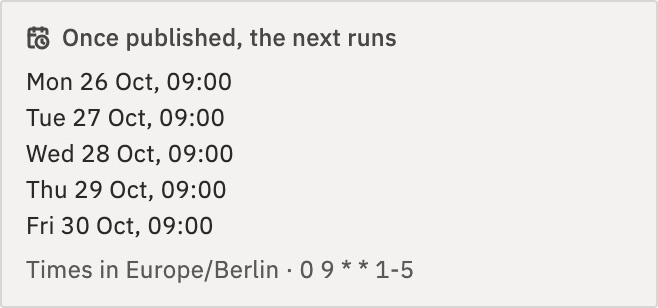
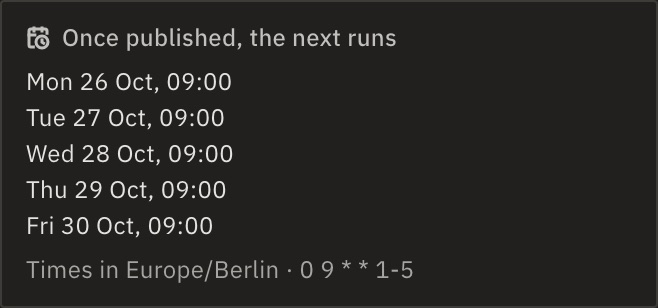
The schedule’s own panel names the two likeliest causes: it isn’t published, and it skips weekends.
- The workflow says DraftNot published
- The workflow says PausedUnpublished
- “Webhook not found.”The address
- “Webhook authentication failed.”The sender
- “HTTP method not allowed for this webhook.”The sender
- “Request body too large.”The sender
- “Too many runs of this workflow are waiting.”The line
- “This endpoint isn’t accepting requests right now.”The organization
- No runs on Saturday or SundayA schedule
- Runs start at the wrong hourA schedule
- Some runs never startedThe limit
- Rows or emails that were already there didn’t start runsAn app’s trigger
- An app’s trigger picks up nothingAn app’s trigger
The workflow says Draft
Only a Live workflow’s trigger starts runs. A draft runs only when you press Test.
Fix- Open the workflow.
- Press Publish. The state next to its name changes to Live.
The workflow says Paused
Someone pressed Unpublish. The trigger stopped, and a schedule’s panel says Paused — no runs until it is turned back on.
Fix- Open the workflow and press Publish.
“Webhook not found.”
The address answers 404 with this text when the workflow isn’t Live, and when someone pressed Regenerate URL: the old address stops working at once. It does the same when the trigger’s app isn’t allowed for your organization. A form’s address answers like a webhook’s.
- Make sure the workflow is Live.
- Select the trigger’s card and copy its current Webhook URL (production) or Form URL (public).
- Give the new address to whatever sends to it.
“Webhook authentication failed.”
The sender didn’t pass the trigger’s Authentication, such as a missing header or a wrong password. With a signature check, it says Webhook signature verification failed.
Fix- Select the trigger’s card and read its Authentication.
- Make the sender send exactly that.
“HTTP method not allowed for this webhook.”
The request’s method isn’t in the trigger’s Allowed Methods.
Fix- Select the trigger’s card and add the method to Allowed Methods, or leave it empty to allow every method. Then press Publish.
- Or make the sender use a method that is allowed.
“Request body too large.”
The request is over 5 MiB.
Fix- Send less, or a link to the file.
“Too many runs of this workflow are waiting.”
The workflow’s line is full.
FixSee Limit runs at once.
“This endpoint isn’t accepting requests right now.”
The organization is suspended, or on Self-hosted the installation has no valid license. The sender is told to try again in an hour.
FixAsk GoRunner support, your platform admin or, in the Embed, your provider.
No runs on Saturday or Sunday
Every Hour and Every Day run on weekdays only, unless you tick Run on weekends (Sat, Sun).
Fix- Select the Schedule card and tick Run on weekends (Sat, Sun).
- Check the next runs at the top of the panel, then press Publish.
Runs start at the wrong hour
A schedule uses its own Timezone, which is UTC until you change it.
Fix- Select the Schedule card and set Timezone.
- Check the next runs, then press Publish.
Some runs never started
The workflow was at its Concurrency limit, set to Refuse. New runs are turned away: a webhook caller gets 429 with This workflow is already running its limit of 2 at once., a schedule skips its turn, and an app trigger tries the items again at its next check.
- Open the workflow’s Settings.
- Under When it is at its limit, choose Wait in line, or raise the Concurrency limit.
Rows or emails that were already there didn’t start runs
The first check after you publish only notes what is already there. Only items that arrive or change after it start runs. Changing what the trigger watches, such as its sheet, folder or connection, starts over the same way.
Fix- Add a new item, or change one.
- It starts a run within about a minute.
An app’s trigger picks up nothing
Triggers such as Gmail’s check for new items about once a minute, through their connection. A connection that is Signed out can’t check.
Fix- In the sidebar, open Connections.
- Find the app’s connection and press Sign in again.
Still stuck?
Write to GoRunner support. Send the workflow’s name, its trigger, and when you expected the run.