Add, move and remove steps
Add the steps your workflow does, put them in order, and take them out.
Add a step
- Under the last card, press +. To put a step between two cards, press the + on the line between them.
- In Add a step, type what you need, such as
sheets, or open a category. - Choose the app, then what it should do, and fill in its fields.
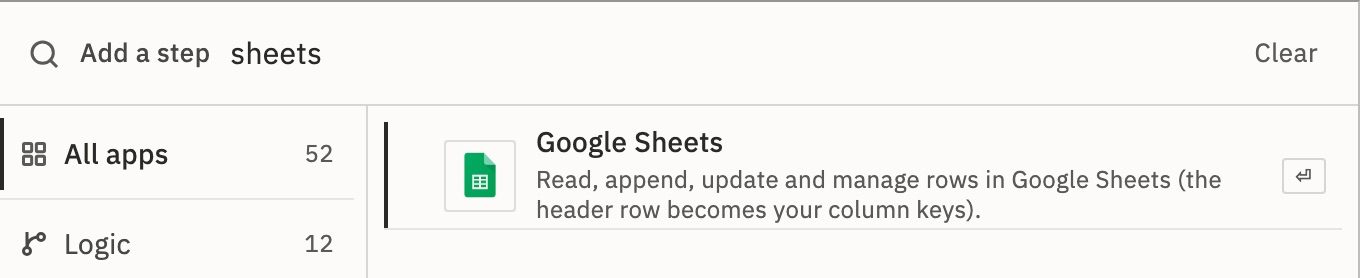
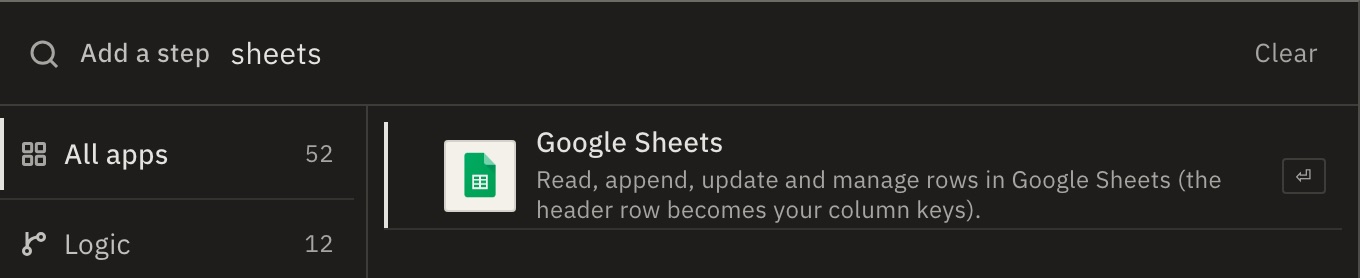
You should see a new card with the step’s number, such as 02. A card that still needs a field shows a warning mark.
Rename a step
Select it, press its name at the top of the panel, and type. The card shows the new name. A name can be 255 characters.
Expressions keep working: they point at the step’s fixed name, such as step_1, not at its title.
Move, copy and remove
Right-click a card for these:
| Choose | What it does | Key |
|---|---|---|
| Move up, Move down | Swaps the step with its neighbour. | |
| Duplicate | Adds a copy right after it, with a name that says it’s a copy. | ⌘ D |
| Copy, Paste | One step at a time. Paste puts it after the selected step. | ⌘ C, ⌘ V |
| Disable | Runs skip the step, and its card says Off. Enable brings it back. | |
| Replace piece | Swaps the step’s app or action, in the same place. | |
| Run from here | Tests your draft from this step. Only on the main line, not inside a branch or loop. | |
| Delete | Removes the step. | ⌫ |
Made a mistake? Press ⌘ Z to undo, and ⌘ ⇧ Z to redo.
Can I leave notes on the canvas?
Yes. Right-click the canvas and choose Add sticky note. Notes never change what a run does.
For developers
Each step has a name that never changes, such as step_1, and a displayName, the title on its card. Steps follow one another through nextAction. See Workflow definition.
Related
- Use data from earlier stepsPut a form answer into an email · 5 min
- Branch and loopChoose a path, repeat for each item · 5 min
- Keyboard shortcutsEvery key on the canvas
Checked against 12d85b3b