Test, publish and go back to a version
Try your draft, make it live, and go back to an earlier version when you need to.
The canvas always holds your draft. Production runs only what you published. An edit to a live workflow changes nothing until you publish again, except a sensitive variable, which applies at once.
Your draft saves as you work: the top bar says Saved. If it says Not saved, press Try again.
Test the draft
Press Test in the top bar. GoRunner runs your draft once, with the trigger’s test data. Each card shows Worked or Failed; select one to see its Result, Input and Output.
A test does real work: an email step sends the email.
- Test step
- At the bottom of a step’s panel: run only that step, with the data earlier steps produced. On the trigger it is Load sample event.
- Test event…
- Right-click the trigger to choose or save the data a test starts with.
- Listen for the next real event
- For a webhook: for 120 seconds, the next request to its address comes onto the canvas. On a draft it runs as a test. On a live workflow it runs the live version as usual.
- Run from here
- Right-click a step to test from it, with the data earlier steps produced. It works on steps on the main line, not inside a branch or loop.
- Pin an output
- In a step’s Result, press the pin (Pin output). Tests reuse that output instead of running the step. Production always runs it. Up to 2 MB.
Publish
Press Publish. The trigger goes live: its address answers, its schedule starts. The state beside the name changes from Draft to Live.


When you edit a live workflow, its state reads Live · Edited. Press Publish changes to make the edits live.
What if it says “2 to configure”?
Something would stop the workflow from running, such as an empty field or a step with no connection. Press it to see each one, such as Add a row: no connection chosen, and to go to it. Publish refuses the workflow until each is fixed.
Unpublish
Press Unpublish. The workflow is Paused: its address and its schedule stop. The draft and every version stay.
If runs are waiting in line, it asks first. They still run, unless you tick Cancel them too. Held runs stay held, and go on when someone answers.
In Workflows, Pause does the same, and Go live publishes your current draft.
Go back to a version
- In the builder’s left rail, open Versions.
- Find the version, such as v3. Each line says what changed, such as Added Log it.
- Press Restore, then Publish changes (or Publish on a paused workflow) to make it live.
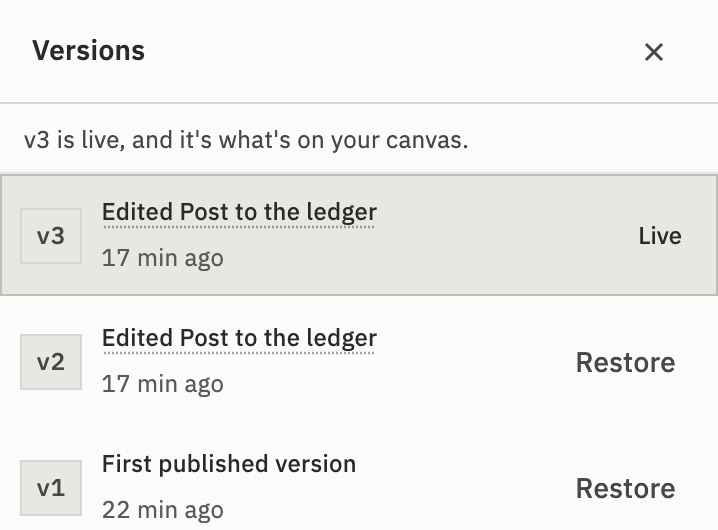
Restore copies the version onto your canvas. Nothing goes live until you publish, and ⌘ Z undoes it. Each publish saves a version; draft edits don’t.
A run always shows the version that ran, not your current draft.
What if someone else is editing it?
One person edits a workflow at a time. If someone else holds it, your change isn’t saved and GoRunner says so. In a second tab of your own, the canvas is read-only until you press Edit here instead.
Check it worked
The state next to the workflow’s name reads Live.
For developers
Publish a workflow refuses everything Check a definition reports as blocking. It also checks what needs your workspace: each step’s connection, the schedule, the error workflow and what a trigger watches. It answers with the first problem it finds. List versions and Go back to a version do what the Versions panel does.
Related
- RunsTest runs, production runs and their states · 4 min
- Handle errorsStop, carry on, or run steps of your own · 4 min
- Organize workflowsFolders, tags, duplicate and export · 4 min
Checked against 12d85b3b