Variables
Keep a value once on the workflow, and use it in any step.
A variable holds a value many steps need, such as a base address, a limit or a sender’s name. Change it in one place.
Add a variable
- In the builder’s left rail, open Variables.
- Press Add variable, then type a name and its value. It saves itself.
- In any field, type
{{$vars.NAME}}, with your variable’s name.
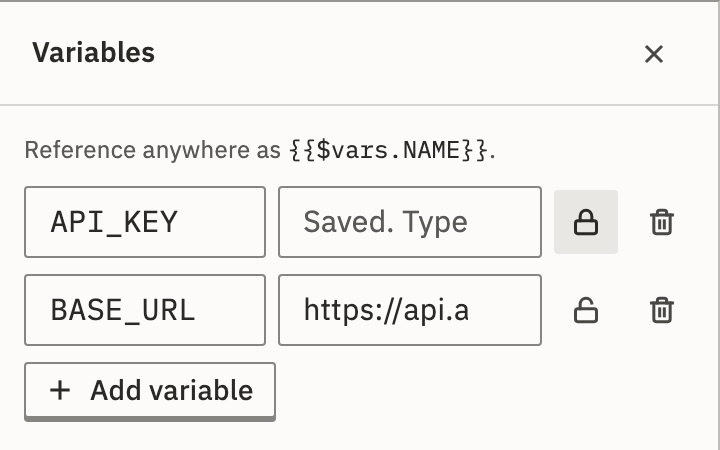
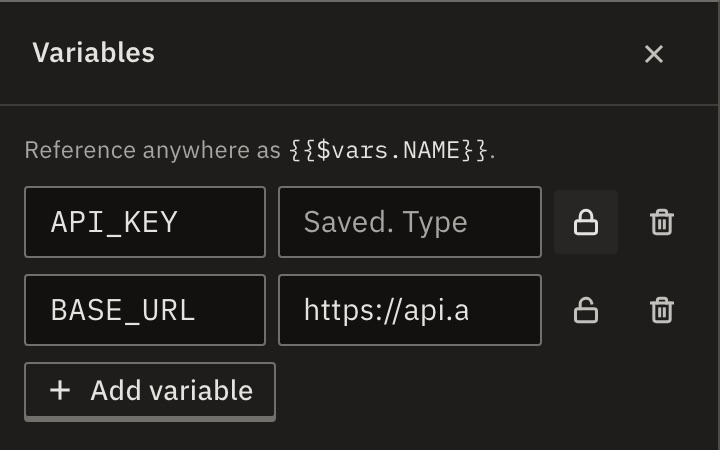
A name uses letters, digits and _, doesn’t start with a digit, and has at most 128 characters.
Plain or sensitive
Press the lock beside a variable to make it sensitive. Use that for a secret with no connection of its own, such as a key in an HTTP header.
| What differs | Plain | Sensitive |
|---|---|---|
| Shown again after saving | ✓ Yes | — No |
| In run data | As it is | Replaced with *** |
| On a live workflow, a change applies | When you publish | At once |
| Copied by Duplicate, export and templates | ✓ Yes | — No |
A sensitive value needs at least 6 characters, so hiding it can’t blank out unrelated text. Making a variable sensitive also removes its old value from earlier versions. Making it plain again empties it.
What if there’s no lock?
Your role may not change the workflow, or the installation has no encryption key set up. Then a variable can’t be made sensitive there.
Variable or connection?
When the app has a connection, use it: it is tested, shows its state, and can be changed for every workflow at once. Use a sensitive variable for everything else.
Check it worked
Press Test, select a step that uses the variable and open its Input. A plain value shows as it is. A sensitive one shows as ***.
For developers
List variables returns a sensitive variable’s name, never its value. Replace variables takes the whole list; send "keep": true to keep a sensitive value you weren’t given.
Related
- ConnectionsSign-ins to apps, shared by the workspace · 4 min
- Use data from earlier stepsExpressions and the Data pane · 5 min
- ExpressionsEvery path and function
Checked against 12d85b3b