Branch and loop
Send a run down one path or another, or repeat steps for each item in a list.
Which one to use
- Branch
- Different steps for different cases, such as big orders and small ones.
- Switch
- One value picks the path, such as an order’s status: paid, refunded or open.
- Filter
- Carry on only when something is true. Otherwise the run ends there.
- Loop
- The same steps once for each item in a list, such as each row of a sheet.
Branch
- Add a step, type
branchand choose Branch. - In Branch 1, set a condition: a value, a test such as Contains or Is after, and what to compare it with.
- Press And condition when all must hold, or Or group for another set that may hold instead. Press Add branch for another path.
- On the canvas, press Add step under each path.
Only one path runs. After it, the run carries on with Post to the ledger.
Otherwise runs when no branch matches. To run every branch that matches, not just the first, set Execution Mode to Execute all matching branches.
Switch
Add Switch, put the value in Value to match, such as {{trigger.body.status}}, then press Add case for each value. Otherwise runs when no case matches. “Paid” matches the case “paid” unless you tick Match case exactly.
Filter
Add Filter and set its conditions. When they don’t hold, the run ends there and still counts as Worked. Nothing below the filter runs. To end it as Failed instead, use Stop / Error.
Loop
- Add a step, type
loopand choose Loop. - In Items, put the list, such as the rows an earlier step read.
- On the canvas, press Add step to repeat and add the steps to run for each item.
Inside the loop, the current item is {{steps.step_2.item}} and its place is {{steps.step_2.index}}, counting from 0. Use your loop step’s name in place of step_2.
- Batch Size
- Items per round. Above 1, the item is a list of up to that many.
- Max Iterations
- Stop after this many rounds. 0 means no limit.
- Iteration Timeout (seconds)
- The most one round may take, up to 600.
If a step inside fails, the loop and the run stop, unless you changed that step’s On error.
Note Inside a branch or a loop, a Delay can be at most 5 minutes; a longer one fails the step. An approval there fails too. Put waits on the main line.
Check it worked
Press Test with data that matches one path. The cards on that path show Worked.
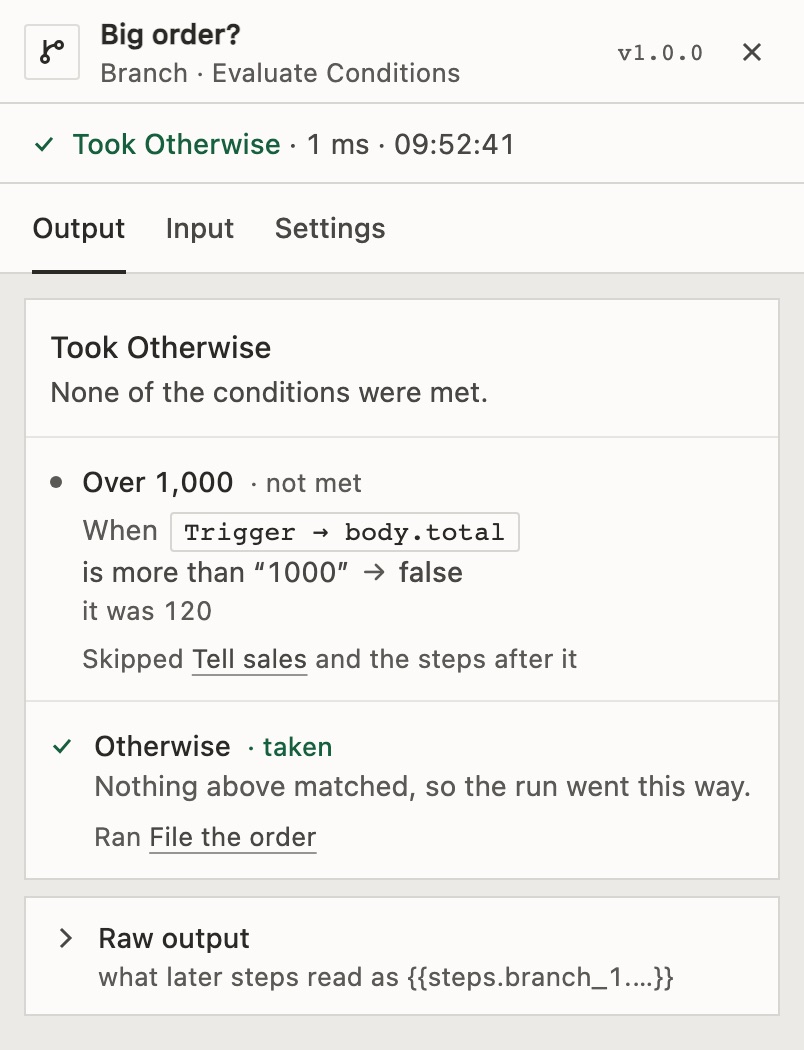
On a run’s page, select the Branch or Switch: it says which way the run went, such as Took Otherwise, and shows each condition with the value it saw. Select a Loop to pick an iteration and see what each step inside returned. The card of a step inside a loop says how often it ran, such as ×50 · 1.0 s in all.
For developers
A Branch keeps its paths in branches[], each with its conditions and its firstAction. Otherwise is the path with no conditions, always last, and is added on save if it’s missing. A Branch’s output lists the paths it took in matchedBranches, by their position counting from 0 (none when it went to Otherwise), names the first in matchedBranch (or otherwise), and says what each condition came to in conditionResults: true, false, or null where it wasn’t checked. A Loop’s steps hang under firstLoopAction; after the loop, {{steps.step_2.iterations}} holds one record per item. See Workflow definition.
Related
- Use data from earlier stepsThe value a condition tests · 5 min
- BranchEvery condition test
- LoopEvery field and output
Checked against 12d85b3b