Start from a webhook
Start a run each time another app, or your code, sends a request to the workflow’s address.
Add the webhook
- In a new workflow, press Add a trigger, type
webhookand choose Webhook. - Add your steps, then press Publish.
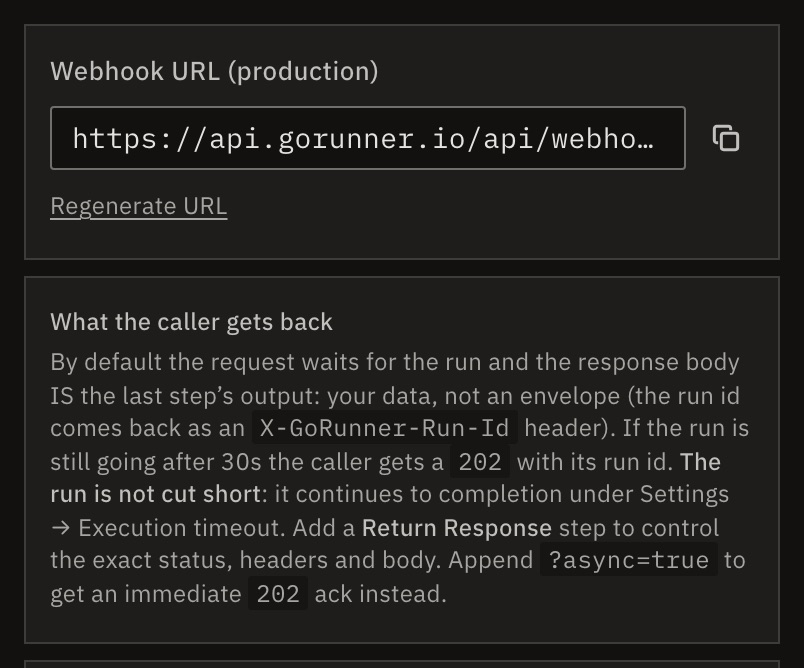
- Select the Catch Webhook card and copy the Webhook URL (production).
- Give the address to the app that sends the data, or call it yourself:
# The Webhook URL (production) you copied
WEBHOOK_URL="https://api.gorunner.io/api/webhooks/your-token"
curl -X POST "$WEBHOOK_URL" \
  -H 'content-type: application/json' \
  -d '{"email": "ada@acme.example"}'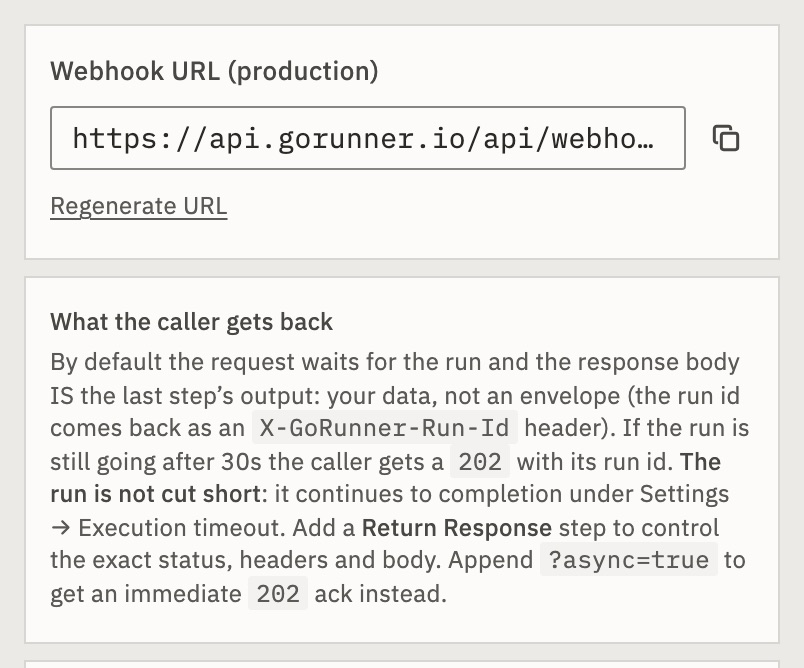
What was sent is on {{trigger.body}}, with {{trigger.headers}}, {{trigger.query}} and {{trigger.method}}. The address starts with your installation’s address.The address starts with the address of the product you use.
Can I try it before I publish?
Yes. Until you publish, the address answers 404. Press Test in the top bar to run the draft with its test event. Or, under Test event, press Listen for the next real event. For 120 seconds, the next request to the workflow’s own address runs your draft as a test and appears on the canvas.
What the caller gets back
By default, the caller waits up to 30 seconds for the run. It gets 200 and the last step’s output, or your own response (below). The run’s id comes back in the X-Run-Id header. See Call a workflow’s webhook.
A sender that retries can send an Idempotency-Key header, so a retry never starts a second run. See Retry safely.
Answer with your own response
Add a step: Webhook › Return Response. It decides the answer:
- Response Type
- JSON, Raw Text, or Redirect to another address.
- Status Code
200unless you change it.- Response Headers
- Extra headers to send back.
- After responding
- Stop the workflow, or Keep running: the caller gets the answer at once, and the rest of the steps run after.
Choose who may call it
Anyone who has the address can start a run. To check the caller, set the trigger’s Authentication:
- None
- Any request starts a run. The default.
- Basic Auth
- A username and password.
- Header Auth
- A header, such as
X-Api-Key, with the value you set. - HMAC Signature
- The sender signs the body with a shared secret and sends the signature in a header, such as GitHub’s
X-Hub-Signature-256.
A request that fails the check gets 401. Allowed Methods limits which methods start a run; empty allows all.
What if the address leaks?
Press Regenerate URL under the address. The old one stops working at once, so give the new one to everything that sends to it.
How big can a request be?
Up to 5 MiB. A bigger body gets 413 PAYLOAD_TOO_LARGE, and nothing runs.
Check it worked
Send a request. In Runs, the new run shows Worked. Select its trigger card to see what arrived.
For developers
Call a workflow’s webhook covers every answer and header in full. To start a workflow with an API token instead, use Run a workflow.
Related
- Call a workflow’s webhookEvery answer, header and limit · 5 min
- Limit runs at onceWait in line, or refuse · 4 min
- WebhookEvery field of the trigger and of Return Response
Checked against 12d85b3b