Connections
A connection is your sign-in to one account of an app, saved once for the whole workspace.
A step that works in an app, such as Gmail or a database, needs a connection to that app. You add it once. Every workflow in the workspace can then use it. Other workspaces can’t see it.
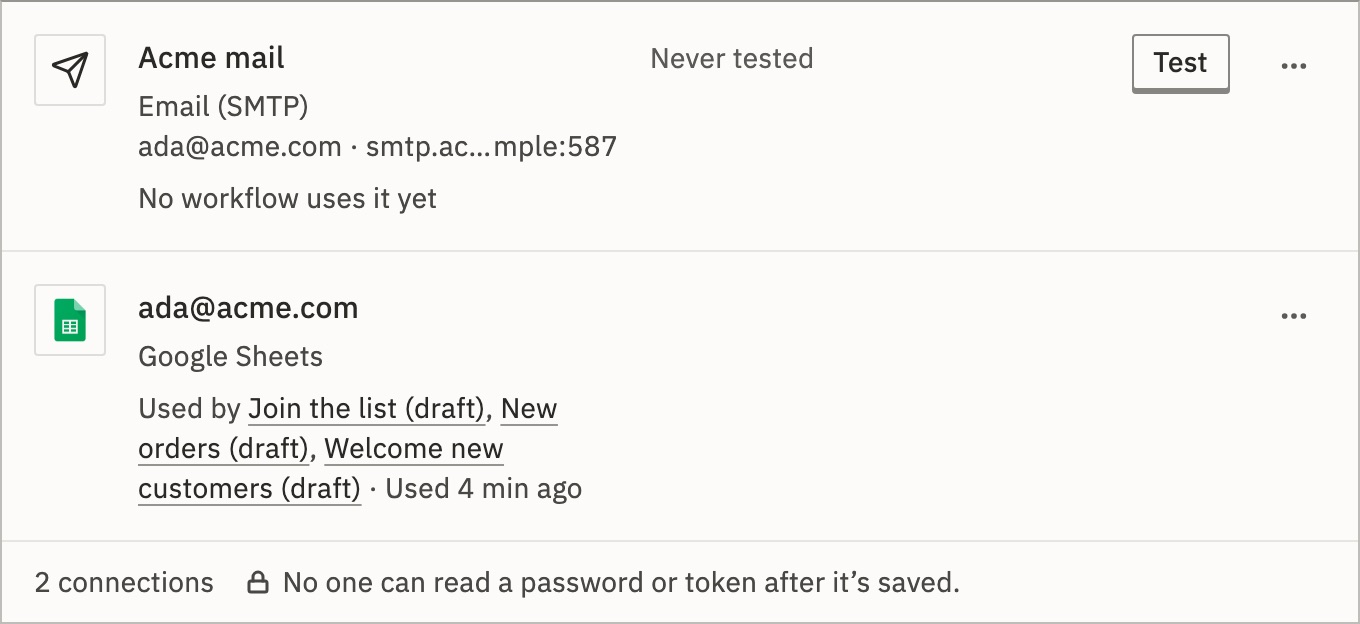
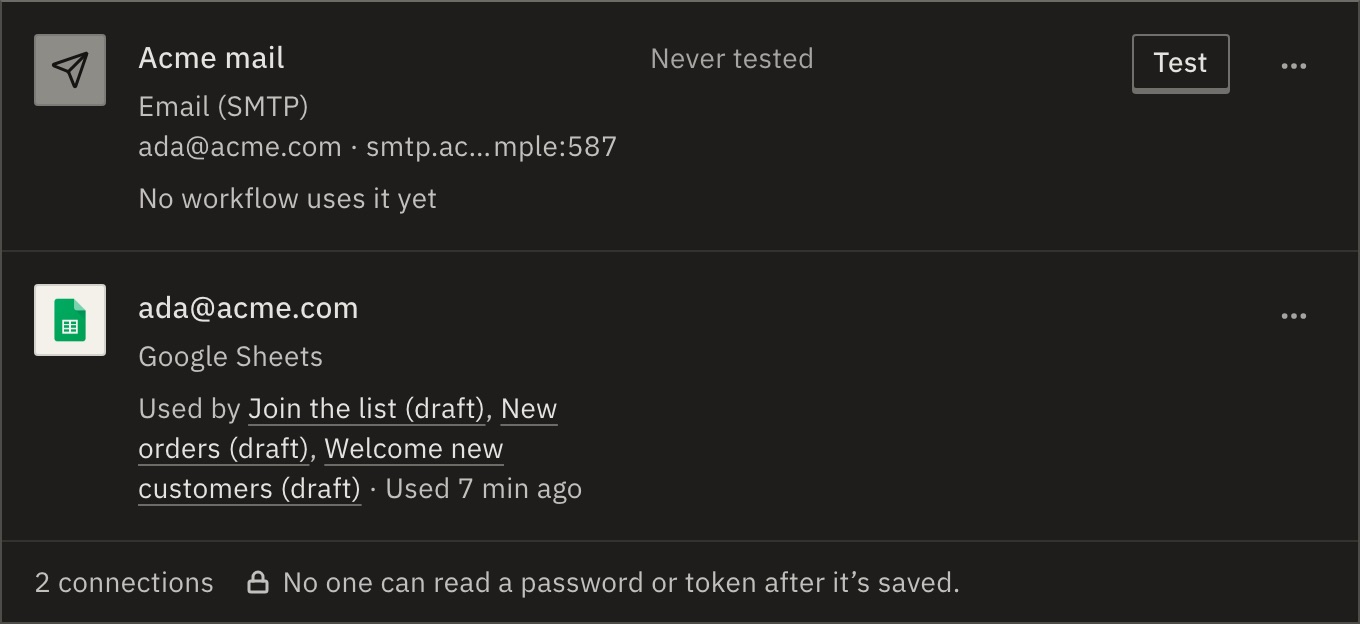
Add a connection
- Open Connections and press Add connection.
- Choose the app.
- Sign in, such as with Sign in with Google. Or paste its details, such as an API token, and press Test and save.
A sign-in is saved when you finish in the app’s window, and then renews by itself. Pasted details are tested before they’re saved. You can also add one from a step: under Connection, press New.
What if the app can’t be tested right now?
Press Save without a test. The first run that uses the connection will tell whether it works.
What its state means
A connection that works shows nothing. Otherwise its row says one of these:
- Not working
- The app refused its password, token or address, in a test or a run.
- Signed out
- The app ended the sign-in, or it ran out and can’t renew.
- Not signed in
- The sign-in was never finished.
- Expiring
- The sign-in ends within 7 days and can’t renew itself.
- Never tested
- It was saved without a test, and no run has used it yet.
- Not available
- This installation doesn’t include the app.
The row’s key fixes it, such as Sign in again or Change API token…. A connection stopped working goes through each one.
Test, change, move or delete
Each row’s menu (⋯) has these:
- Test
- Asks the app whether the connection still works. Or press T.
- Rename
- Up to 255 characters. Steps that use it keep working. Or press F2.
- Change…
- Type a new password, token or address. It is tested, then saved onto the same connection, so every workflow keeps working.
- Move workflows…
- Every step that uses it switches to another connection of the same app, in drafts and in live versions. Live workflows use it from their next run.
- Delete…
- It lists the workflows that will fail without it. You can undo for 30 seconds.
Test all checks every connection. Search finds a connection by name, app, account or the workflows that use it. Not used shows the ones no workflow uses. Viewers see everything. Editors and admins add, test and change.
After you delete a Google connection, Google still lists GoRunner under the account’s third-party access until you remove it there.
Before a workflow goes live
A draft may have steps with no connection yet. Publish refuses it until each step whose app needs one has one, and names the step.
How are connections kept safe?
- No one can read a password or token after it’s saved. Not in the product, and not over the API.
- Each organization has its own encryption key. Deleting an organization deletes its key, so its secrets can never be read again.
- Each time a run uses a connection, the audit log records it.
- Templates never carry connections: whoever uses one picks their own.
For developers
A step names its connection by id in connectionId. See which workflows use each connection before you change one, and Move workflows to another connection does what Move workflows… does. Reads never return the secret.
Related
- A connection stopped workingOne fix for each state
- VariablesFor a secret that has no connection · 3 min
- AppsWhat each app connects to, and how
Checked against 12d85b3b