Handle errors
Choose what happens when a step fails: stop, carry on, or run steps of your own.
By default, a run stops at the step that failed and is Failed. You can change that for each step.
Choose what happens
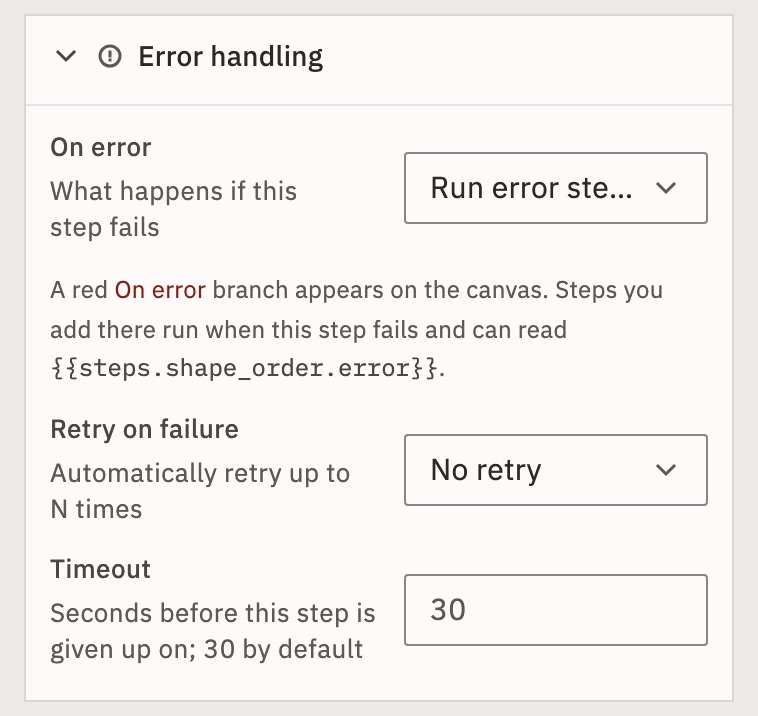
- Select the step and open Error handling, at the bottom of its panel.
- Under On error, choose one of the three below.
- Stop the run
- The run stops here and is Failed. This is the default.
- Continue
- The step shows Failed, the steps below it still run, and the run is Worked.
- Run error steps
- A red On error branch appears. Its steps run instead of the steps below, and the run is Worked. With no error steps on the branch, the run stops as with Stop the run.
Add error steps
- Set On error to Run error steps.
- On the canvas, press Add error step on the red On error branch.
- Choose an app to tell you, such as Gmail, and fill it in.
An error step can read why the step failed: {{steps.shape_order.error}}, with your step’s name, such as shape_order, in the middle. The Error handling panel shows the exact expression for the step you selected.
If Shape the order fails, only Email me runs. Post to the ledger doesn’t.
Changing On error to anything else deletes the error steps, after asking.
Retry, and give a slow step more time
- Retry on failure
- Try the step again, up to 5 times, before On error applies.
- Timeout
- Seconds each try may take before it is given up on: 30 by default (some apps set more), up to 600. Each retry gets the full time again.
The whole run has its own limit too: Execution timeout in the workflow’s Settings, 5 minutes unless you set up to 3600 seconds. See Run states and limits.
Note Only app and Code steps have On error. If a Branch or Loop fails, the run stops.
Can another workflow run when this one fails?
Yes. In the workflow’s Settings, choose an Error workflow. It runs when a run of this workflow fails, and gets the failure as its trigger data. It must be published.
End a run on purpose
Add Stop / Error where the run should end. Stop (success) ends it as Worked. Stop with error ends it as Failed, with your message. Leave its On error at Stop the run: any other choice cancels the stop.
Check it worked
Press Test with a sample that makes the step fail. The step shows Failed, and your error steps show Worked.
For developers
In the workflow definition these are config.onError (stop, continue or errorPath), config.maxRetries and config.timeoutSeconds. Error steps hang under the step’s onErrorAction, and only run when onError is errorPath. See Workflow definition.
Related
- Find out why a run failedThe failed step, and what it received · 3 min
- A run failedFixes, by the error on screen
- Fix failing workflows with Keel/fix, and the proposal card · 3 min
Checked against 12d85b3b