 Gmail
Send, read and label email from a workflow, or start a workflow when new email arrives.
Connect Gmail
- In the sidebar, open Connections and press Add connection.
- Type
gmailand choose Gmail. - Press Sign in with Google.
- Choose your account in Google’s window and allow access.
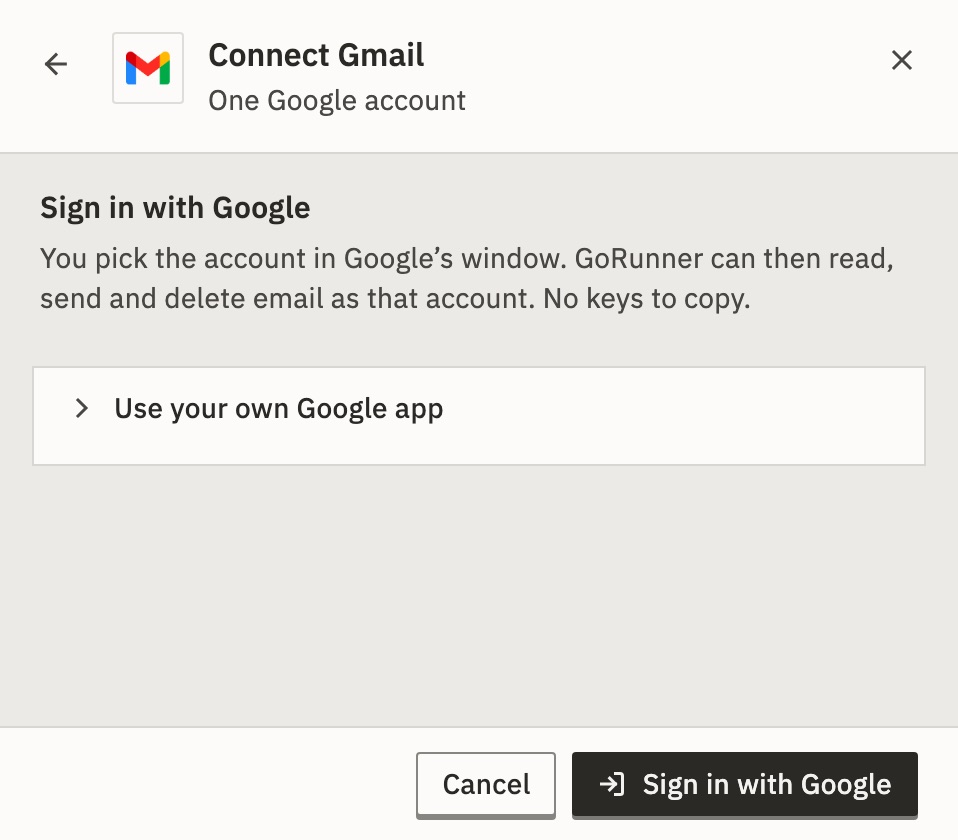
You should see Signed in as and the account’s address. GoRunner can then read, send and delete email as that account.
You can also connect from a step: under Connection, press New. The trigger and the actions use the same connection.
What if it says “Google sign-in isn’t set up here”?
This installation has no Google app yet. An admin of the installation sees Set up Google sign-in instead, and sets it up once for everyone:
- In Google Cloud, create an OAuth client of type Web application, and turn on the API for Gmail.
- In GoRunner, copy the Redirect address to add in Google Cloud, and add it to the client.
- Paste the Client ID and Client secret, then press Save and sign in.
Publish the app in Google Cloud. An app left in Testing signs everyone out after 7 days.
Everyone else sees who to ask. Until it is set up, Paste an access token instead lets you try a step. A pasted token lasts about an hour and can’t renew itself.
Can I use my own Google app?
Yes. In the sheet, open Use your own Google app and paste its Client ID and Client secret. Add the Redirect address to add in Google Cloud to your app first. The connection then signs in through your app instead of the installation’s.
Connections says how to sign in again, rename or delete it. In a product that embeds GoRunner, Add connection can be missing: then your provider makes connections for you.
Start a workflow
Add a trigger and choose Gmail. The trigger uses the same connection as the steps.
On Message Received
It checks the inbox about once a minute and starts one run for each new email that matches.
- Simplified · Optional
Return headers only (faster). Turn off for the full body.
On by default.
- Search · Optional
Gmail search query, such as has:attachment subject:invoice.
- From Sender · Optional
Only emails from this address.
- Read Status · Optional
Filter by read/unread.
Options: Both, Unread only, Read only.
Default: Unread only.
- Labels · Optional
Comma-separated label IDs the email must have (such as INBOX).
- Include Spam & Trash · Optional
Also watch SPAM and TRASH.
Off by default.
- Max Emails per Poll · Optional
Most new emails one poll delivers (1–50); any more come on the next poll, oldest first. Only mail received after the trigger started watching fires, whatever the filters: an old email that is labelled or marked unread does not, and without a Search or Labels filter only mail from the last day.
Default: 10.
- Include Drafts · Optional
Also fire for draft messages.
Off by default.
- Download Attachments · Optional
Fetch each new email's attachment bytes (requires Simplified off).
Off by default.
With Search or Labels, an older email that starts to match, for example one you label, also starts a run.
A later step can use its data, such as {{trigger.From}}, {{trigger.Subject}}, {{trigger.change_type}} and 2 more. See Use data from earlier steps.
Do things in Gmail
Add a Gmail step, choose a Resource, then an Operation. Choose a row to see its fields.
- MessageSend · Send & Wait for Approval · Reply · Get · Get Many · Delete · Add Labels · Remove Labels · Mark as Read · Mark as Unread
- LabelCreate · Get · Get Many · Delete
- DraftCreate · Get · Get Many · Delete
- ThreadGet · Get Many · Reply · Trash · Untrash · Delete · Add Labels · Remove Labels
Send & Wait for Approval sends the email with Approve and Reject links, then holds the run until someone presses one. Wait Timeout (seconds) lets it carry on by itself after a while. 0 waits until someone answers.
Later steps read a step’s output by its name: see Use data from earlier steps.
Example
Email yourself each sign-up. Use a Form trigger, then a Gmail step set to Message and Send. Set To to your address and Message to:
New sign-up: {{trigger.body.name}}Limits
- A test run acts on the real mailbox. Delete, Trash and Send really happen.
- The connection can read, send and delete email as the account you signed in with. Every workflow in the workspace can use it.
Not in your list? See When an app isn’t here.
For developers
In the API, which calls apps pieces, Gmail is pieceId: "gmail" with actionId: "gmail", set by resource and an operation_… field, such as operation_draft. Its trigger is gmailtrigger / gmail_message_received. Get an app returns every field.
It can change something outside the run (writes_external). See How versions and side effects work.
Gmail › Message
Send
- To · Required
Recipient address(es), comma-separated. Accepts "Name <a@b.com>".
- Subject · Required
Email subject.
- Email Type · Optional
Send the body as plain text or HTML.
Options: Text, HTML.
Default: HTML.
- Message · Required
The email body (plain text or HTML per Email Type).
- CC · Optional
CC recipients, comma-separated.
- BCC · Optional
BCC recipients, comma-separated.
- Reply-To · Optional
Reply-To header address.
- Sender Name · Optional
Display name on the From header (your address is looked up automatically).
- Attachments · Optional
An array of file objects from previous steps (each {filename, data (base64), mimeType}).
- Append Attribution · Optional
Append a small "sent automatically" footer.
Off by default.
Send & Wait for Approval
- To · Required
Recipient address(es), comma-separated. Accepts "Name <a@b.com>".
- Subject · Required
Email subject.
- Email Type · Optional
Send the body as plain text or HTML.
Options: Text, HTML.
Default: HTML.
- Message · Required
The email body (plain text or HTML per Email Type).
- CC · Optional
CC recipients, comma-separated.
- BCC · Optional
BCC recipients, comma-separated.
- Reply-To · Optional
Reply-To header address.
- Sender Name · Optional
Display name on the From header (your address is looked up automatically).
- Attachments · Optional
An array of file objects from previous steps (each {filename, data (base64), mimeType}).
- Append Attribution · Optional
Append a small "sent automatically" footer.
Off by default.
- Wait Timeout (seconds) · Optional
Resume automatically after this long if no decision arrives (0 = wait indefinitely).
Default: 0.
Reply
- Message ID · Required
The Gmail message id (such as {{steps.previous.id}}).
- Email Type · Optional
Send the body as plain text or HTML.
Options: Text, HTML.
Default: HTML.
- Message · Required
The email body (plain text or HTML per Email Type).
- CC · Optional
CC recipients, comma-separated.
- BCC · Optional
BCC recipients, comma-separated.
- Sender Name · Optional
Display name on the From header (your address is looked up automatically).
- Attachments · Optional
An array of file objects from previous steps (each {filename, data (base64), mimeType}).
- Append Attribution · Optional
Append a small "sent automatically" footer.
Off by default.
- Reply to Sender Only · Optional
Reply only to the original sender (not the other recipients).
Off by default.
- Reply to Recipients Only · Optional
Reply to the other recipients but not the original sender.
Off by default.
Get
- Message ID · Required
The Gmail message id (such as {{steps.previous.id}}).
- Simplified · Optional
Return headers only (faster). Turn off for the full body + attachments.
On by default.
- Download Attachments · Optional
Fetch each attachment's bytes into the result (base64).
Off by default.
Shows when Simplified is off.
Get Many
- Return All · Optional
Return every matching message (paginates).
Off by default.
- Limit · Optional
Max messages to return.
Default: 50.
Shows when Return All is off.
- Simplified · Optional
Return headers only (faster). Turn off for the full body + attachments.
On by default.
- Download Attachments · Optional
Fetch each attachment's bytes into the result (base64).
Off by default.
Shows when Simplified is off.
- Search · Optional
Gmail search query, such as has:attachment subject:invoice.
- From Sender · Optional
Only messages from this address.
- Read Status · Optional
Filter by read/unread.
Options: Both, Unread only, Read only.
Default: Both.
- Labels · Optional
Comma-separated label IDs the message must have (such as INBOX).
- Received After · Optional
Gmail after: value, as a date (2024/01/31) or unix seconds.
- Received Before · Optional
Gmail before: value, as a date (2024/01/31) or unix seconds.
- Include Spam & Trash · Optional
Also search SPAM and TRASH.
Off by default.
Delete, Mark as Read and Mark as Unread
- Message ID · Required
The Gmail message id (such as {{steps.previous.id}}).
Add Labels and Remove Labels
- Message ID · Required
The Gmail message id (such as {{steps.previous.id}}).
- Label IDs · Required
Comma-separated label IDs to add/remove (use the Label resource's Get Many to find IDs).
Gmail › Label
Create
- Name · Required
The label name.
- Label List Visibility · Optional
Whether the label shows in Gmail's label list.
Options: Show, Show if unread, Hide.
Default: Show.
- Message List Visibility · Optional
Whether messages with this label show in the message list.
Options: Show, Hide.
Default: Show.
Get and Delete
- Label ID · Required
The label id (such as Label_123).
Get Many
- Limit · Optional
Max labels to return (0 = all).
Default: 0.
Gmail › Draft
Create
- Subject · Required
Draft subject.
- Email Type · Optional
Draft body format.
Options: Text, HTML.
Default: HTML.
- Message · Required
Draft body.
- To · Optional
Recipient(s), comma-separated.
- CC · Optional
CC recipients.
- BCC · Optional
BCC recipients.
- Reply-To · Optional
Reply-To header address.
- Send As (alias) · Optional
A configured send-as alias address to put in the From header.
- Thread ID · Optional
Attach the draft to an existing thread (its Message-ID threading headers are added).
- Attachments · Optional
An array of file objects (each {filename, data, mimeType}).
Get
- Draft ID · Required
The draft id.
- Download Attachments · Optional
Fetch each attachment's bytes into the result.
Off by default.
Get Many
- Return All · Optional
Return every draft.
Off by default.
- Limit · Optional
Max drafts to return.
Default: 50.
Shows when Return All is off.
- Download Attachments · Optional
Fetch each attachment's bytes into the result.
Off by default.
- Include Spam & Trash · Optional
Also include drafts in SPAM and TRASH.
Off by default.
Delete
- Draft ID · Required
The draft id.
Gmail › Thread
Get
- Thread ID · Required
The Gmail thread id.
- Simplified · Optional
Return headers only for each message (faster).
On by default.
- Return Only Messages · Optional
Return just the messages array (off = the full thread object).
On by default.
Get Many
- Return All · Optional
Return every matching thread.
Off by default.
- Limit · Optional
Max threads to return.
Default: 50.
Shows when Return All is off.
- Search · Optional
Gmail search query.
- From Sender · Optional
Only threads from this address.
- Read Status · Optional
Filter by read/unread.
Options: Both, Unread only, Read only.
Default: Both.
- Labels · Optional
Comma-separated label IDs the thread must have.
- Include Spam & Trash · Optional
Also search SPAM and TRASH.
Off by default.
Reply
- Thread ID · Required
The Gmail thread id.
- Message · Required
The reply body.
- Email Type · Optional
Reply body format.
Options: Text, HTML.
Default: HTML.
- Reply To Message ID · Optional
Reply relative to a specific message in the thread (blank = the latest).
- CC · Optional
CC recipients.
- BCC · Optional
BCC recipients.
- Sender Name · Optional
From display name.
- Attachments · Optional
An array of file objects (each {filename, data, mimeType}).
- Reply to Sender Only · Optional
Reply only to the original sender.
Off by default.
- Reply to Recipients Only · Optional
Reply to other recipients but not the sender.
Off by default.
Trash, Untrash and Delete
- Thread ID · Required
The Gmail thread id.
Add Labels and Remove Labels
- Thread ID · Required
The Gmail thread id.
- Label IDs · Required
Comma-separated label IDs to add/remove across the thread.