Turn your workflows into tools
Publish a workflow with the MCP Tool trigger, and connected AI apps can call it by name.
The app sees a tool such as look_up_order, with your description and parameters. Each call is a production run of the published workflow. Your connections and secrets stay in GoRunner.
Add the MCP Tool trigger
- In a new workflow, press Add a trigger and choose MCP Tool. Its trigger is When an AI app calls this tool.
- Under Tool name, type what the app calls it, such as
look_up_order. Leave it blank to use the workflow’s name. - Under What it does, say what it does, when to use it, and what it returns. The app chooses the tool from this alone.
- Under Parameters, add what the app must send, such as
order_id. A step reads it as{{trigger.body.order_id}}. - Add the steps. Under What to return, type the name of the step whose output the app gets. Leave it blank for the last step’s.
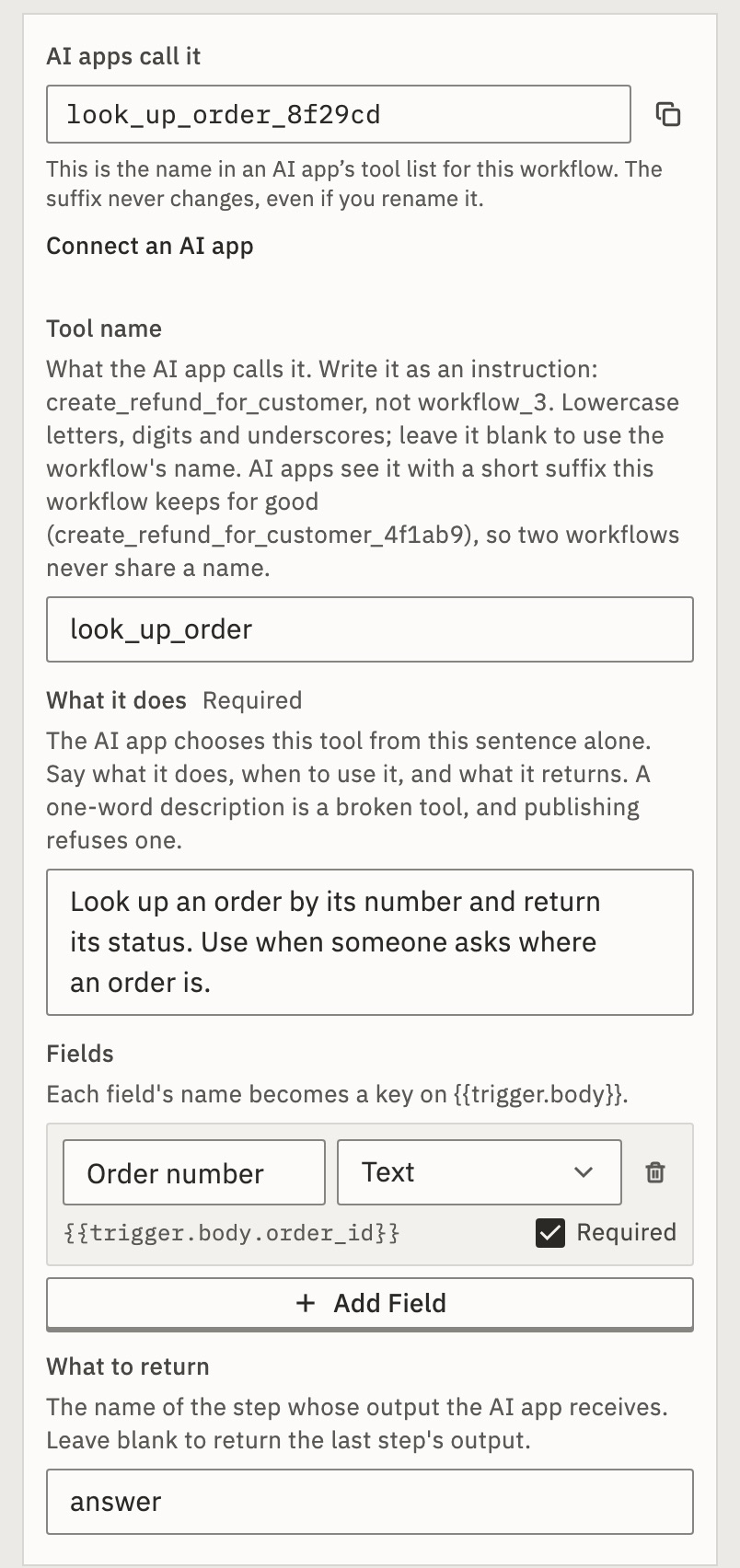
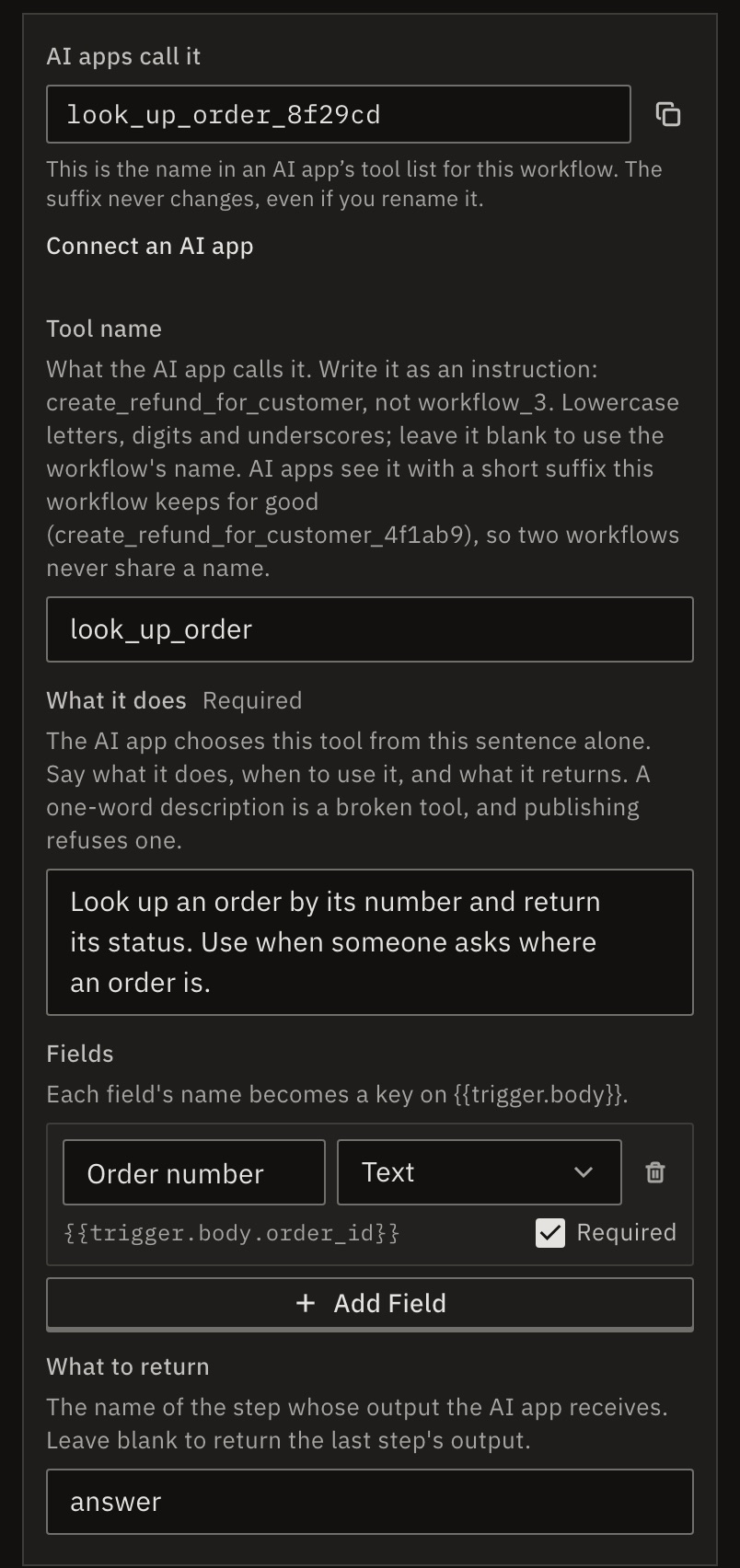
You should see under AI apps call it, you see the exact name, such as look_up_order_0aa121. The suffix never changes, even if you rename it.
Publish it
Press Publish. Only a published workflow is a tool, and apps see the published version. It is then listed under Workflow tools on the MCP page.
Publishing refuses a description shorter than 24 characters. It also refuses a required parameter of type password or file, because an app can’t send either. Apps see the first 800 characters of What it does.
Connect an AI app to it
- Open MCP in the sidebar. Workflow tools lists each tool: Tool name, State and Calls, 7 days.
- Under Server, press Copy next to Workflow tools only. The address ends in
/mcp/tools.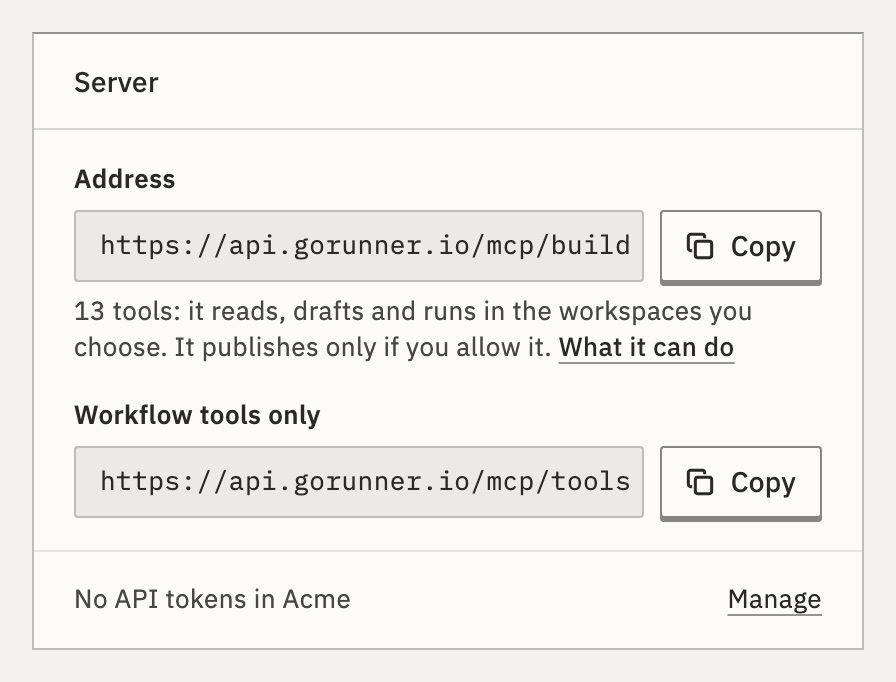
- Add it to your app as a second MCP server, the same way as on your app’s page. With an API token, use the address ending in
/mcp/tools/w/<workspace ID>, as for Claude Code:claude mcp add --transport http gorunner-tools https://api.gorunner.io/mcp/tools/w/<workspace ID> \ --header "Authorization: Bearer grt_…"
In the product you use, open MCP and copy the address. When the product lets apps run your workflows but not build them, that address serves your tools.
You should see Ask for the outcome, such as “Where is order A-1001?”. The app calls your tool, and Runs shows the run with the trigger MCP.
What if my tool isn’t offered?
An app allowed Read only sees no tools here, because each call runs a workflow. A workflow is also left out when it isn’t published, or its description is too short.
One connection offers at most 40 tools. Past that, the app is told some are missing: unpublish the ones you don’t use.
What if the workflow takes a long time?
The app waits up to 25 seconds. After that it is told the run is still going, with the run’s ID, and the run carries on. If it calls again with the same idempotencyKey, it gets the first run, not a second one.
What does the app get when something goes wrong?
A value outside a dropdown’s choices, or a parameter the tool doesn’t have, is refused before anything runs, naming what is allowed. If the run fails, the app gets the failing step’s name and error, with the run’s ID.
One answer may be up to 96 KB. Past that, return a smaller step with What to return.
For developers
The tools server is https://api.gorunner.io/mcp/tools. It needs workflow:run, and lists only published workflows with the trigger mcptool / mcp_tool. A call runs the workflow in production and answers with the chosen step’s output. A missing required parameter is refused before anything runs. Every tool also takes an optional idempotencyKey, unless a parameter of yours has that name. Each tool is marked destructive, so an app may ask you before each call. MCP Tool lists every field.
Related
- Connect an AI appChoose the app, the workspace and what it may do · 3 min
- Test, publish and go back to a versionPublish makes it live · 5 min
- Build toolsWhat an app can do on the build server
Checked against 12d85b3b