Goose
Connect Goose to GoRunner, then ask it to build, run and check your workflows.
You need
- Goose
- On your computer.
Connect Goose
- In GoRunner, open MCP in the sidebar. If an app is already connected, press Connect an AI app. Choose Goose; if it isn’t shown, press All 13 apps.
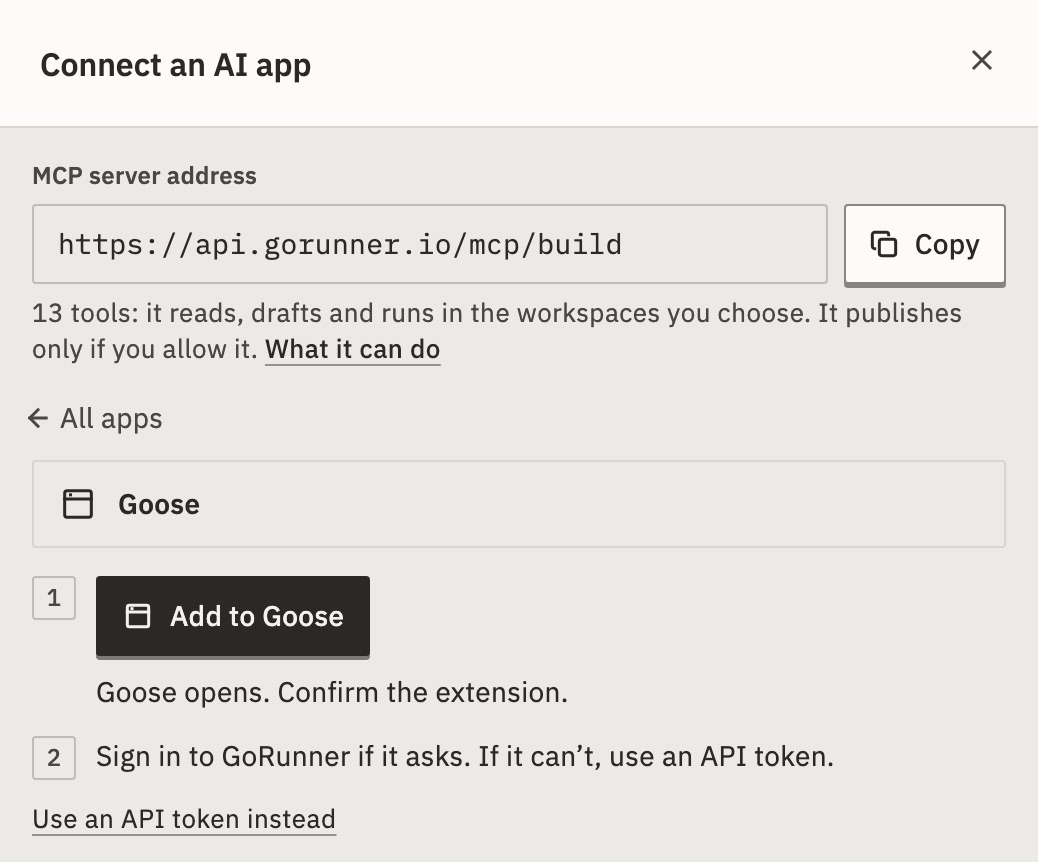
- Press Add to Goose. Goose opens. Confirm the extension.
- Sign in to GoRunner if it asks. If it can’t, use an API token.
- If Goose signs in, on Allow “Goose” to use GoRunner?, choose the workspace and what it may do, then press Allow access.
- In the product you use, open MCP, press Connect an AI app and choose Goose.
- Press Add to Goose. Goose opens. Confirm the extension.
- Sign in with the account you use here if it asks. If it can’t, use an API token.
- If Goose signs in, choose what it may do, then press Allow access.
You should see Connected in the panel once Goose signs in and makes its first request. With a token, the token’s line says Connected instead.
It stays connected for up to 180 days, or until you disconnect it.
Without sign-in for AI apps, the panel shows Goose with a token instead: make or paste one, and copy the header it fills in. If the product lets apps run your workflows but not build them, the address ends in /tools. Goose can then only call your published workflows. See Turn your workflows into tools.
Can I use an API token instead?
Yes, for an app that can’t sign in. In the panel, press Use an API token instead. Connect with an API token shows each step.
How do I disconnect Goose?
On the MCP page, under Connected apps, press Disconnect next to the app. Revoke a token in Settings › Workspace › API tokens.
On the product’s MCP page, press Disconnect next to the app.
It stops on its next request. Remove it in Goose too.
What you can ask
13 tools: it reads, drafts and runs in the workspaces you choose. It publishes only if you allow it.What it can do depends on what the product allows: building, or only your published workflows. If Goose lists the server’s commands, try one:
- Build a workflow (when it may write drafts)
- Diagnose a failed run
- Explain a workflow
It can also call your own published workflows.
For developers
AI apps connect through MCP (Model Context Protocol). Goose adds the server https://api.gorunner.io/mcp/build under the name gorunner. It signs in with OAuth where it can, and otherwise uses an API token. Self-hosted: your installation’s address, ending in /mcp/build.