See and disconnect AI apps
See each AI app you let in, change the workspaces it reaches, or disconnect it.
See your apps
Open MCP in the sidebar. Connected apps lists every app you signed in. With none, the page shows how to connect one instead.
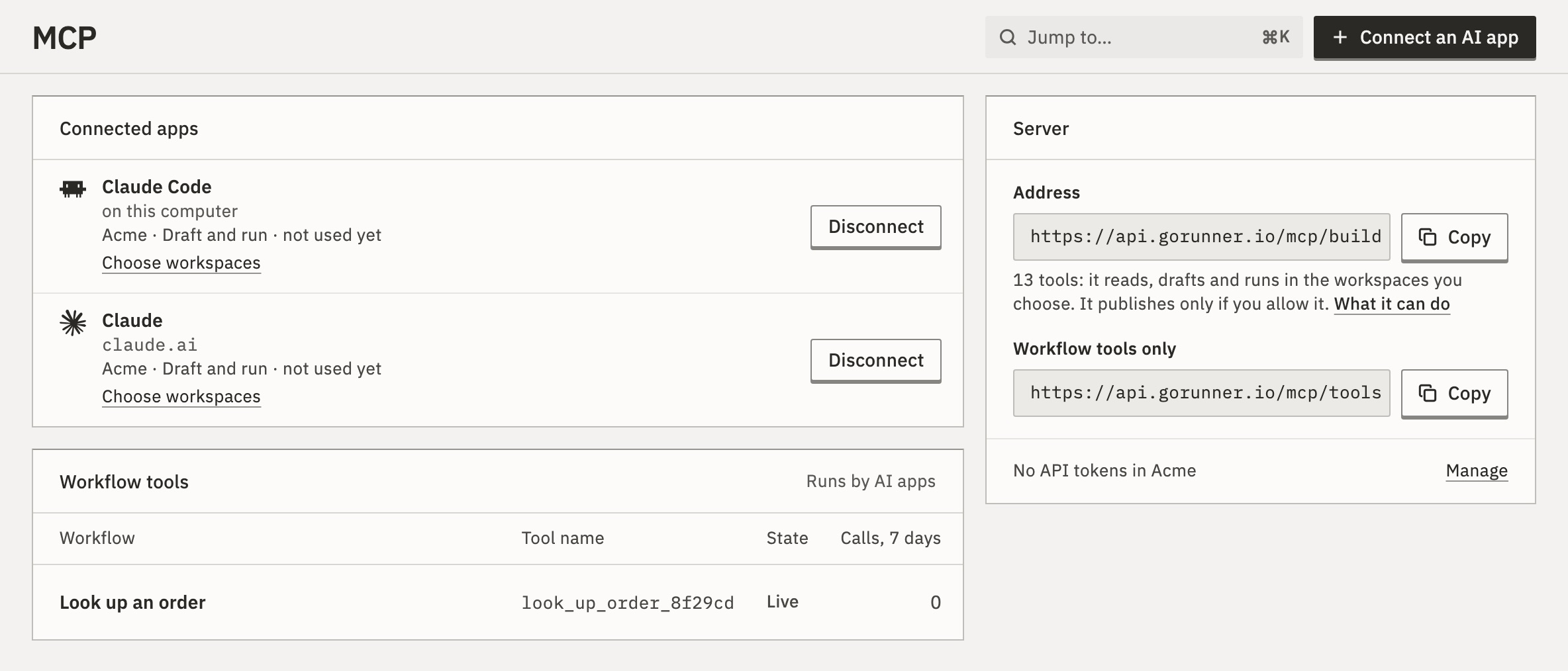
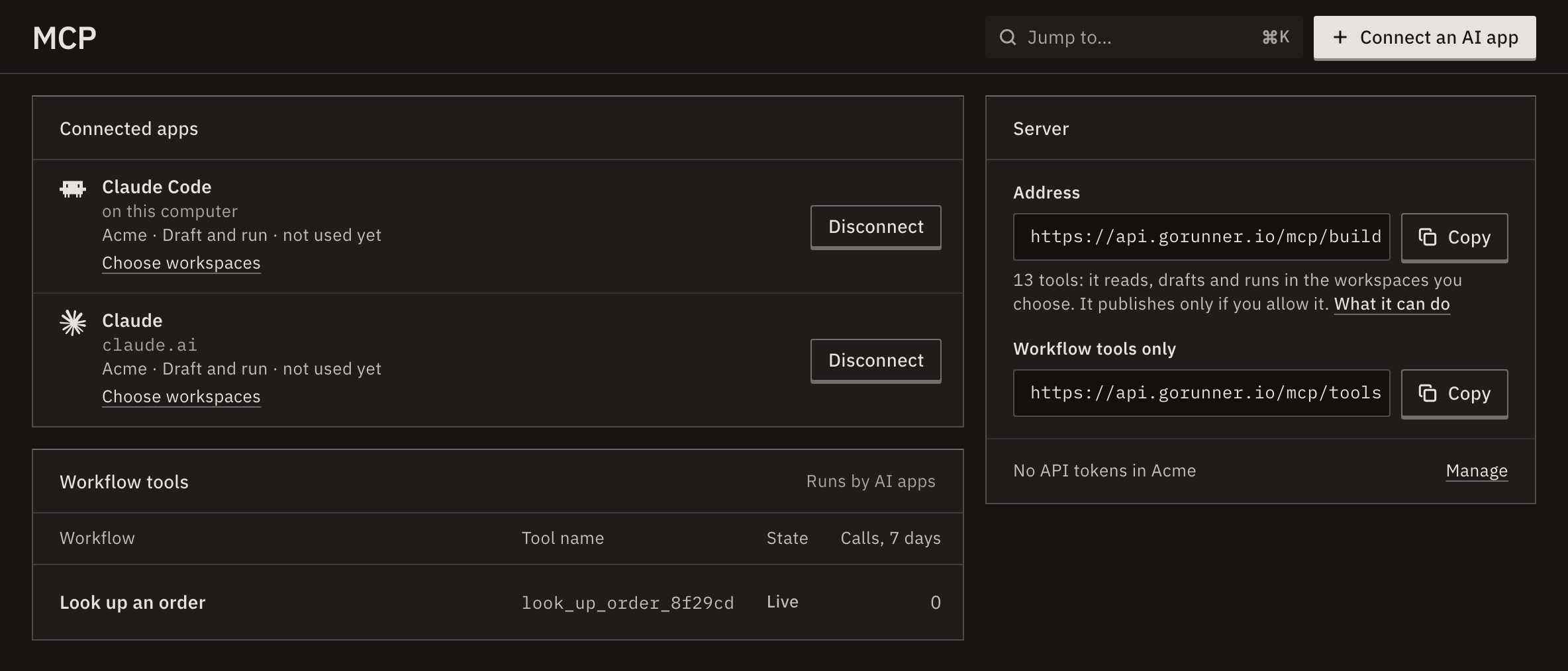
In the product you use, open MCP. Connected apps lists the apps you signed in from there.
Each row shows the app’s name, where its sign-in goes (a website, on this computer, or the cursor app on this computer for an app’s own link), the workspaces it reaches, what it may do, and when it was last used.
A row that reads “Paused: … is off for this account” is turned off by the product. It names the switch: API tokens, MCP, MCP sign-in or MCP building. You can still disconnect it.
Disconnect an app
- Press Disconnect next to the app.
- The row asks: “Disconnect Claude? It stops on its next request. Remove it in Claude too.” Press Disconnect, or Keep to leave it.
You should see “Claude disconnected.” The app stops on its next request.
Remove GoRunner in the app too. Removing it only there isn’t enough: the app may not tell GoRunner.
What if a computer with a connected app is lost?
Disconnect the app in GoRunner first. That stops it at once, whatever the computer still holds. Then remove it in the app when you can.
Change the workspaces it reaches
- In the app’s row, press Choose workspaces.
- Tick the workspaces it may reach, then press Save.
A workspace you take out stops at once. One you add is reached with what you already allowed, limited by your role there. Nothing changes in the app itself.
Choose workspaces appears for apps connected at the plain address. An app added with one workspace’s own address reaches only that workspace.
Connect the app again and tick the workspaces you want. The sign-in page says whether it replaces the earlier connection or adds a second one. If it adds one, disconnect the old one.
Apps that use an API token
Apps that use an API token don’t appear under Connected apps. A workspace admin sees them in Settings › Workspace › API tokens and revokes one there.They are under Tokens on the same page, where an editor presses Revoke. The app stops on its next request.
Related
- Choose what an AI app may doWhat each choice allows · 3 min
- Connect an AI appChoose the app, the workspace and what it may do · 3 min
- Make an API tokenSettings › Workspace › API tokens · 3 min
Checked against 12d85b3b